Google’s generative AI “Gemini” premium plan is now available at a jaw-dropping discount—58% off the regular price.
In this post, I’ll break down the details of the “2026 New Year Campaign” and share my solution to the nerve-wracking “Where’s my 2TB?!” issue I encountered right after signing up.
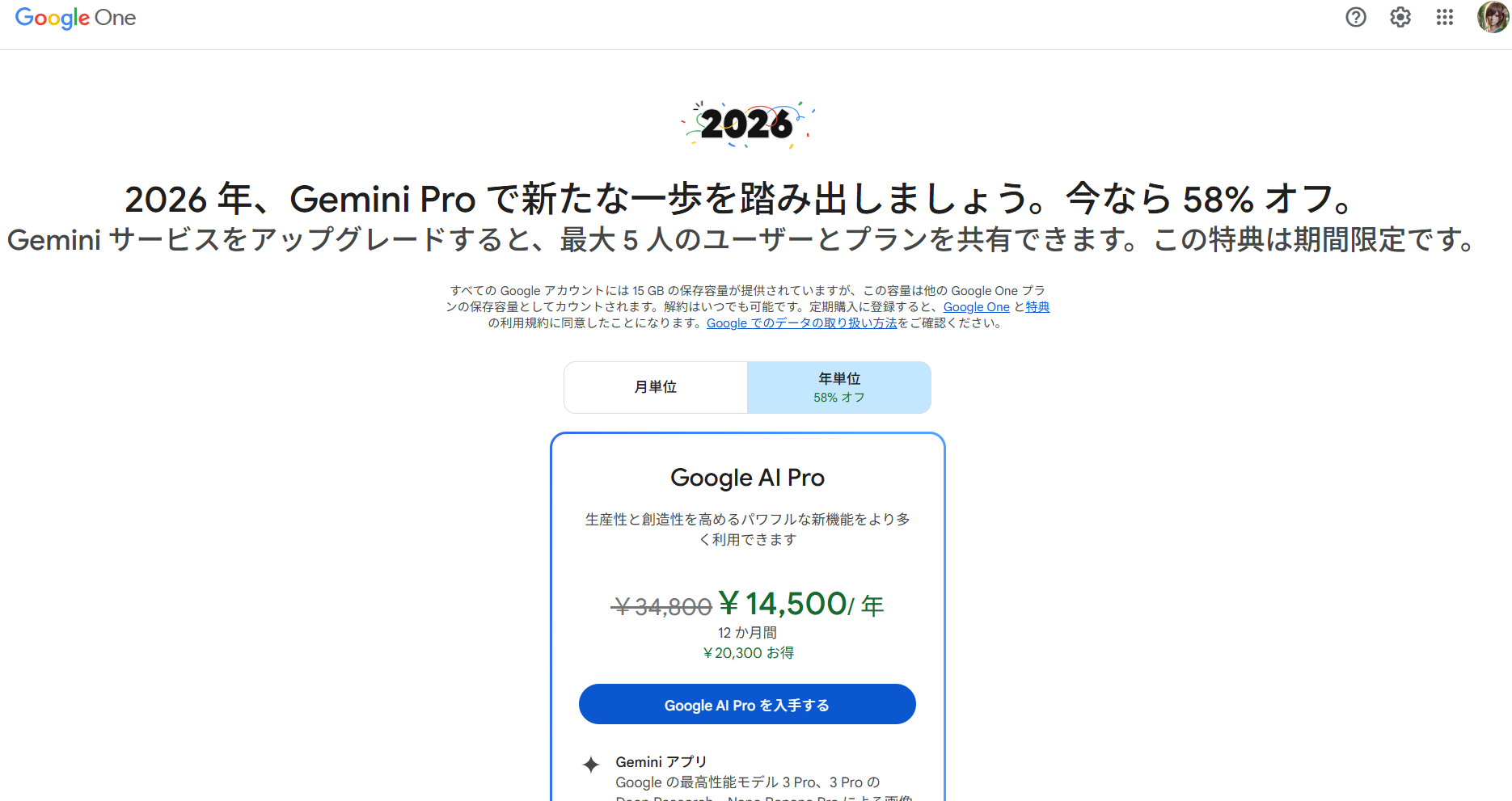
1. Campaign Overview: Google AI Pro for ¥14,500/year
The plan formerly known as “Gemini Advanced (Google One AI Premium)” appears to be running a promotional campaign under the new name “Google AI Pro” ahead of 2026.
- Plan name: Google AI Pro (Annual Plan)
- Regular price: ¥34,800/year
- Campaign price: ¥14,500/year
- Discount: 58% off (saving ¥20,300)
That works out to roughly ¥1,200 per month for access to cutting-edge AI and 2TB of storage.
Key Benefits
According to the promotional materials, the plan includes:
- Latest model: Access to Gemini 3 Pro
- Storage: 2TB on Google One
- Sharing: Share with up to 5 family members
- Additional features: Image generation (Nano Banana Pro), video generation (Veo), and more
The family sharing feature is particularly valuable—split among family members, it comes out to just a few hundred yen per person.
2. [Important] Always Subscribe Through a Web Browser!
Here’s a crucial tip: If you try to subscribe through an app on your iPhone or other device, this discount may not appear (or you may be charged a higher price).
App store transactions through Apple or Google often include additional fees. Make sure to access the official Google One website through Safari, Chrome, or another browser, and confirm that you see the ¥14,500 price before completing your payment.
3. Post-Signup Trouble: “Why Doesn’t My PC Show 2TB?!”
After completing my subscription, I excitedly checked my PC’s File Explorer (Google Drive) only to notice something was off.
“Wait… it only shows 951GB?”
I should have had 2TB (approximately 2000GB), but the display showed just 951GB. Even stranger, it was exactly the same as my C: drive (local disk) capacity.
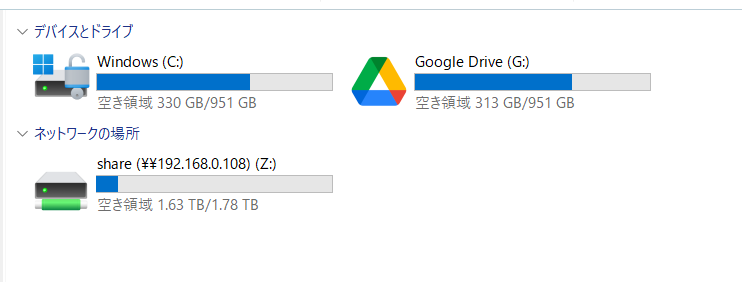
(Actual screenshot: Both C: drive and G: drive showing the same capacity)
I started to panic—”Am I still on the free plan?” “Is this a bug?”—but after some research, I discovered this is actually normal behavior.
Why Does It Show Less?
The Google Drive desktop app (G: drive) apparently mirrors your PC’s local drive (C: drive) free space as the virtual drive capacity.
In other words, even though there’s a vast 2TB ocean available in the cloud, your PC’s entry point (cache limitations, etc.) only has 951GB available, so File Explorer displays the PC’s limit rather than your actual cloud storage.
How to Check Your Real Storage
Don’t be fooled by the PC display. To confirm your actual storage allocation, check this official page in your browser:
When I checked there, it clearly showed “2 TB” as expected.
Summary
This campaign is definitely a great opportunity for anyone looking to get serious about using Gemini.
- Subscribe through a web browser (avoid app-based purchases)
- Don’t panic if your PC shows the same capacity as your C: drive
- Check your real storage on the web-based management page
If you’re thinking about signing up, keep these points in mind and enjoy your new AI-powered experience!