Overview
This document is a comprehensive technical guide for using the powerful command-line tool “rclone” to migrate large volumes of data from OneDrive for Business to Google Drive.
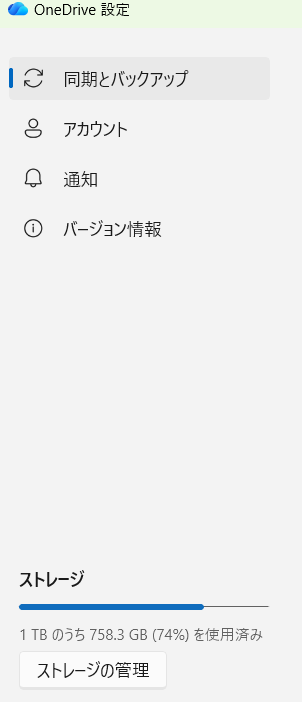
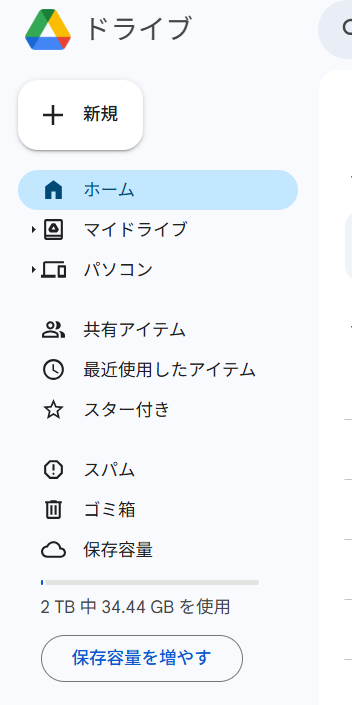
This method is particularly effective for migrating large folders such as multi-TB video archives that aren’t synced to your local PC. rclone directly operates cloud service APIs without going through local sync folders. This provides the core advantage of not requiring massive local storage space and completely bypassing sync processes that can take days.
Critical Fact to Understand First
rclone is NOT a “magic tool that transfers data directly between clouds.”
Here’s how it actually works:
OneDrive (Cloud) → Your PC → Google Drive (Cloud)
The PC running rclone continuously performs “relay processing”—downloading data from OneDrive while simultaneously uploading to Google Drive. However, since this is done in a streaming manner, you don’t need to save entire files locally.
In other words, it’s not that “data doesn’t pass through your PC,” but rather “you don’t need to store the full amount on your PC’s local storage.” Therefore, total migration throughput depends on your PC’s network bandwidth (especially upload speed) and stability.
What Makes This Guide Different
This guide isn’t just a list of commands. It’s an extremely practical troubleshooting collection covering common pitfalls in OneDrive for Business authentication that many technicians encounter, systematic solutions, Windows-specific character encoding fixes, how to resume from interruptions, and verification processes to guarantee migrated data integrity.
1. Migration Process Overview and Prerequisites
Successful data migration starts with clear planning and preparation. This section provides a bird’s-eye view of the entire migration process and organizes the tools and account information needed before starting.
The 5 Migration Phases
The migration process consists of the following five logical phases. By following this safe flow of “Setup → Pre-verification → Execution → Post-verification → Cleanup,” you can minimize unexpected troubles.
- rclone Setup and Remote Configuration — Initial setup to make rclone recognize the source (OneDrive for Business) and destination (Google Drive) cloud storage.
- Connection Path Verification and Pre-testing — The most critical phase where you clear authentication (the biggest hurdle of this migration project) and verify that rclone can correctly see the target files and folders.
- Data Migration Execution — After thorough simulation using the
--dry-runoption and confirming intended behavior, execute the actual data copy command. - Post-Migration Data Integrity Verification — Objectively confirm that copying completed without errors and guarantee migration success.
- Source Data Cleanup (Optional) — After confirming complete migration success, organize source data as needed.
Prerequisites
Before starting, confirm the following prerequisites are met:
- rclone Installation:
rclone.exeis placed in your Windows environment and can be executed from Command Prompt or PowerShell (either add to PATH or specify full path) - Account Information: Legitimate access to the source OneDrive for Business account and destination Google Drive account
- Execution Environment: Windows PC with Command Prompt or PowerShell available
- Stable Network: Wired LAN connection recommended if possible (for stability during long transfers)
2. rclone Setup and Remote Configuration
To maximize rclone’s capabilities, you first need to correctly configure the source and destination cloud storage as “remotes.”
2.1. Checking and Updating rclone Version
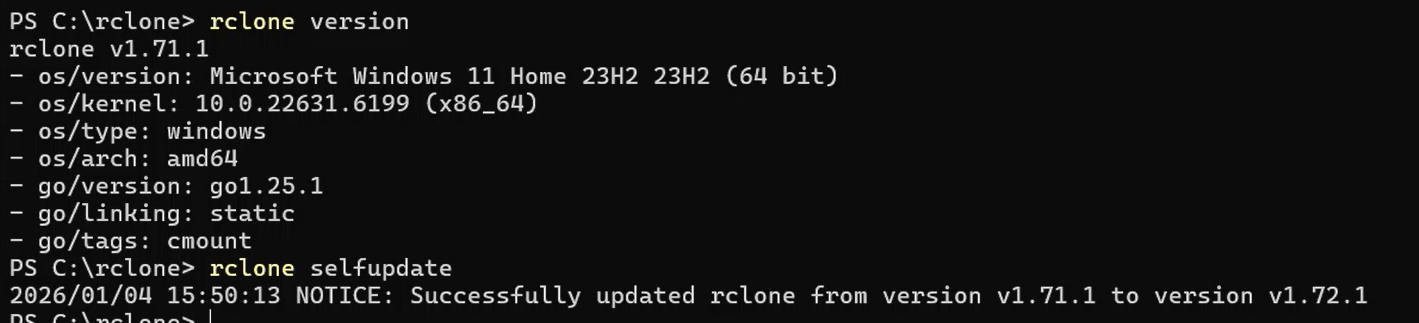
If your rclone version is outdated, it may not support cloud service API specification changes, causing issues especially with authentication. We strongly recommend checking and keeping your version up to date before starting.
Version check command:
rclone version
Example output:
rclone v1.72.1
- os/version: Microsoft Windows 11 Home 23H2 (64 bit)
- os/kernel: 10.0.22631.6199 (x86_64)
- os/type: windows
- os/arch: amd64
- go/version: go1.25.1
- go/linking: static
- go/tags: cmount
Self-update command:
rclone selfupdate
Note: The
selfupdatecommand may not work depending on installation method (e.g., installed via package manager). In that case, download the latest version from the official site and update manually.
2.2. Adding Google Drive Remote (gd)
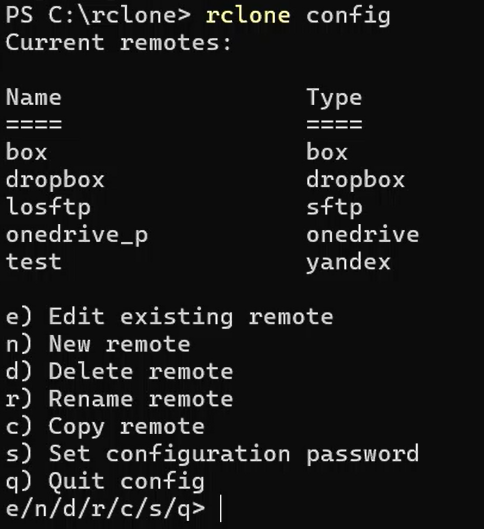
Let’s start with Google Drive, which is relatively easy to configure. Running rclone config starts an interactive setup.
- Enter
nto select “New remote” - For
name, enter a short name to identify this remote (e.g.,gd) - Find
drivein theStoragelist and enter the corresponding number - For subsequent basic questions, default values (just pressing Enter) are fine
- Eventually a browser will launch requesting Google account authentication and access permission—follow the on-screen instructions
2.3. Adding OneDrive for Business Remote (od)
OneDrive for Business configuration has multiple pitfalls due to confusion with personal accounts and organizational security policies. Proceed carefully.
- Similarly, launch
rclone configand start new remote creation withn - Set a clear name like
odforname - Select
onedrivefrom theStoragelist - When asked about account type, selecting “Business (work or school)” is the first critical decision point. Getting this wrong will connect to a personal account instead
Even after completing these remote configurations, issues often arise from complex authentication processes, especially with OneDrive for Business. The next section details typical pitfalls and solutions.
3. The Biggest Challenge: OneDrive for Business Authentication Pitfalls and Solutions
OneDrive for Business authentication is the biggest technical challenge in this migration project. These issues can be primarily categorized into three root causes:
- Account ID Confusion — Mixing up Personal/Business
- rclone Access Permission Settings — Incorrect client_id entry, etc.
- Temporary Microsoft Server State — Authentication infrastructure outages
Understanding which category each pitfall falls into helps resolve issues more quickly.
3.1. Pitfall 1: Confusing Personal and Business Accounts
rclone launches your default browser during authentication, but since that browser prioritizes existing login sessions, cases frequently occur where you accidentally authenticate with a personal account.
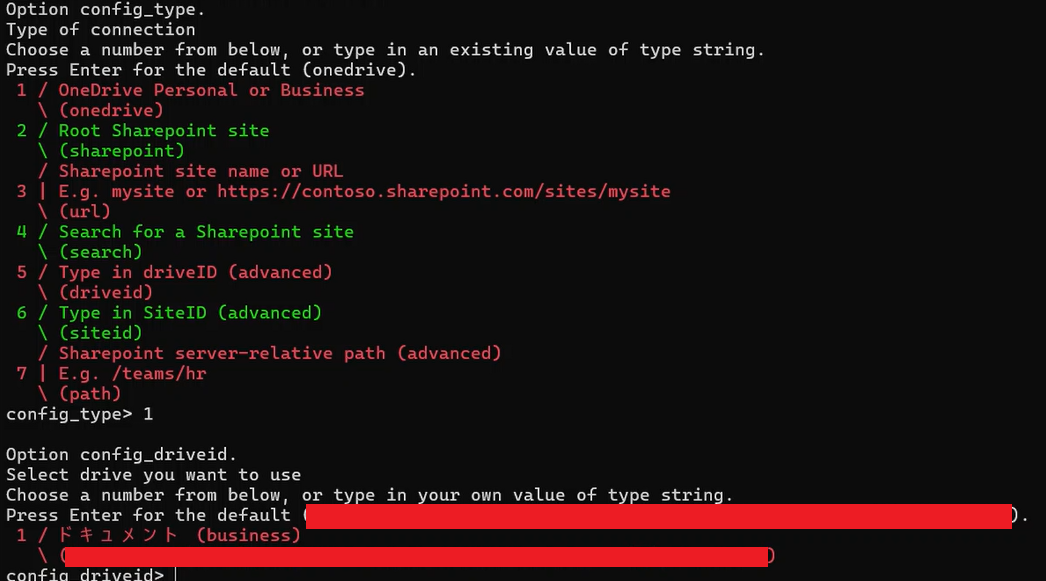
Symptom: In the rclone config drive selection screen, only drives labeled (personal) appear
Cause: The browser opened during authentication was logged into a personal Microsoft account. This is especially common when using multiple Edge profiles.
Solution:
- Before starting authentication, close all browser windows open with personal profiles
- Copy the authentication URL output to the console by rclone and manually open it in browser incognito mode (InPrivate window). This allows you to log in with the intended work account in a state isolated from existing sessions.
3.2. Pitfall 2: Misconfiguring client_id and client_secret
During rclone’s interactive setup, you’ll be prompted to enter client_id and client_secret. The correct answer is usually to press Enter without entering anything.
Symptom: During authentication, an error like AADSTS700016: Application with identifier ... was not found occurs
Cause: An invalid value like an email address was mistakenly entered for client_id
Important:
client_idandclient_secretare only used in extremely advanced and special cases where your organization has registered a custom application in Azure AD and provided you with its ID and secret key. For normal use, always leave these empty.
Solution:
- Launch
rclone configand enterdto delete the problematic remote configuration - Create the remote again with
n, and when prompted forclient_idandclient_secret, press Enter without entering anything to use default settings
3.3. Pitfall 3: Azure AD/Entra ID Consent Error (AADSTS650051)
Problems can occur on the Microsoft Entra ID (formerly Azure AD) side during authentication.
Symptom: After authentication, an error message AADSTS650051: ...service principal name is already present for the tenant appears
Cause: rclone app registration information (service principal) from a previous partially failed authentication remains incomplete in the organization’s tenant, causing conflicts with new consent processing
Solution (if you have admin privileges):
- Sign in to Azure Portal and navigate to “Microsoft Entra ID” → “Enterprise applications”
- Search for application ID
b15665d9-eda6-4092-8539-0eec376afd59 - Select the displayed application (related to rclone) and delete it
- Wait a few minutes, then try the rclone authentication process again
3.4. Pitfall 4: Temporary Microsoft Server Error (AADSTS90092)
This error occurs not due to user configuration mistakes, but because Microsoft’s authentication servers are temporarily unstable.
Symptom: During authentication, error AADSTS90092: Non-retryable error has occurred appears
Cause: Temporary outage or high load on Microsoft authentication infrastructure
Solution:
- Don’t panic—wait a few minutes to several tens of minutes before retrying the authentication process
- Trying reconnection with
rclone config reconnect od:command is also effective - If it still fails, try manually opening the authentication URL in an incognito window
4. Connection Path Verification and PowerShell Character Encoding Fixes
Once authentication succeeds, verify that rclone can correctly see the target files and folders. Also resolve the “character corruption” issue specific to Windows environments here.
4.1. Basic Connection Verification and the “Colon :” Trap
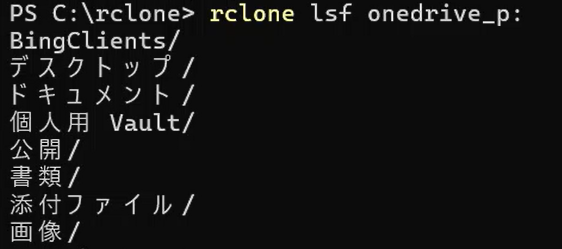
rclone lsf <remote_name>: is the basic command to list files and folders directly under the specified remote’s root directory.
Here’s a trap that 100% of beginners fall into: forgetting to add the colon : at the end of the remote name.
Without :, rclone tries to interpret that name as a local folder, causing a directory not found error.
# Wrong command (will error)
rclone lsf od

# Correct command
rclone lsf od:
4.2. Identifying Target Folder Path
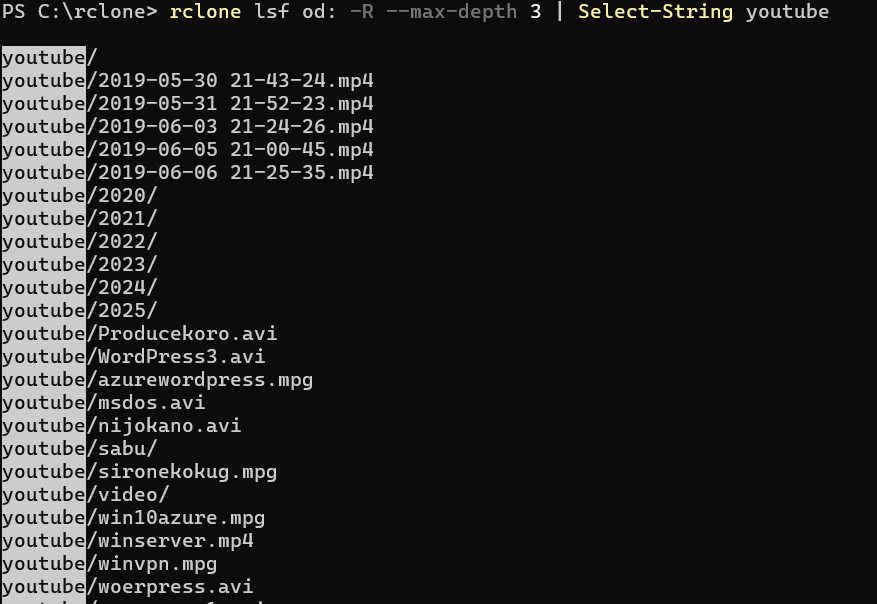
Next, identify where the migration target folder exists within the remote. The following command is a practical example that recursively explores with -R, efficiently searches up to 3 levels with --max-depth 3, and filters results with Select-String.
# Recursively with -R, explore up to 3 levels with --max-depth 3, filter with Select-String
rclone lsf od: -R --max-depth 3 | Select-String youtube
4.3. Fixing Japanese Filename Character Corruption in PowerShell
When executing the above command, filenames containing Japanese characters may appear garbled like 譬ェ萓。謠帷ョ嶺ソよ焚.
Cause: This phenomenon occurs because the character encoding output by rclone (UTF-8) differs from Windows PowerShell’s default console display encoding (CP932/Shift-JIS). The files themselves are not corrupted—it’s a display issue.
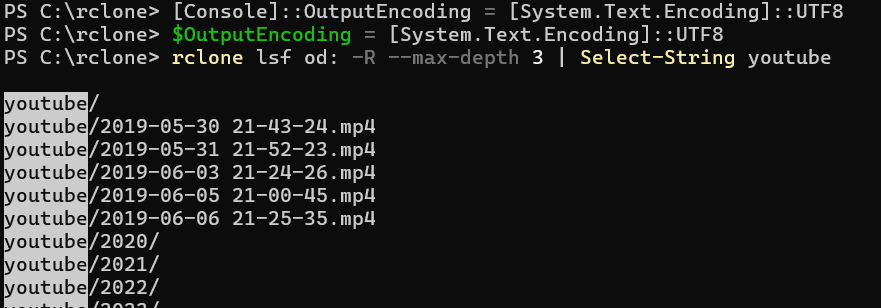
Solution: Execute the following two commands in PowerShell to change the current session’s display encoding to UTF-8.
[Console]::OutputEncoding = [System.Text.Encoding]::UTF8
$OutputEncoding = [System.Text.Encoding]::UTF8
This immediately resolves the character corruption.
5. Safe Data Migration Execution
After thorough preparation and verification, it’s finally time to execute the data migration. However, jumping straight into production copying isn’t wise. Start with simulation using the --dry-run option.
5.1. Step 1: Conducting a Dry Run (Pre-simulation)
--dry-run is an extremely important safety feature that outputs only “what would be copied where” to the log without performing any actual file transfers.
rclone copy "od:youtube" "gd:youtube" --dry-run -P
If the execution results show numerous logs like NOTICE: ... Skipped copy as --dry-run is set, the simulation is successful.
2026/01/04 20:30:25 NOTICE: 2019-06-03 21-24-26.mp4: Skipped copy as --dry-run is set (size 970.496Mi)
2026/01/04 20:30:25 NOTICE: WordPress3.avi: Skipped copy as --dry-run is set (size 2.470Gi)
2026/01/04 20:30:25 NOTICE: msdos.avi: Skipped copy as --dry-run is set (size 5.063Gi)
2026/01/04 20:30:25 NOTICE: white_cat_re.avi: Skipped copy as --dry-run is set (size 705.647Mi)
2026/01/04 20:30:26 NOTICE: 2025/claudecode.mp4: Skipped copy as --dry-run is set (size 1.411Gi)
...
5.2. Step 2: Executing the Production Copy
After confirming no issues with the dry run, remove the --dry-run option and execute the production copy command.
# Generate timestamp-based log filename
$ts = Get-Date -Format "yyyyMMdd-HHmmss"

# Production copy command
rclone copy "od:youtube" "gd:youtube" -P `
  --transfers 4 --checkers 8 `
  --retries 10 --low-level-retries 20 `
  --fast-list `
  --log-file "rclone-copy-$ts.log" --log-level INFO
Role of each option:
| Option | Description |
|---|---|
copy | Only copy if file doesn’t exist at destination or has been updated |
"od:youtube" | Source path. Quoted to handle possible spaces |
"gd:youtube" | Destination path |
-P / --progress | Display transfer progress in real-time |
--transfers 4 | Number of concurrent file transfers. 4-8 is stable for large files |
--checkers 8 | Parallel file existence checks |
--retries 10 | Retry count on failure |
--low-level-retries 20 | Low-level (connection, etc.) retry count |
--fast-list | Optimize directory listing for large file counts |
--log-file ... | Record all operation logs to file |
--log-level INFO | Log verbosity (DEBUG/INFO/NOTICE/ERROR) |
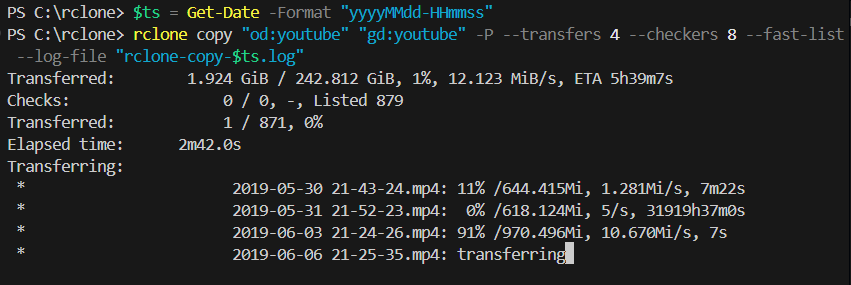
5.3. Transfer Speed Tuning Guidelines
Transfer speed is determined by:
- PC’s network speed (especially upload bandwidth)
- OneDrive download speed
- Google Drive upload speed
- API limits (both Microsoft and Google)
--transfersparallelism
Basic tuning approach:
- Stability-focused: Start with
--transfers 4(this guide’s recommendation) - Speed-focused: If no issues, gradually increase to
--transfers 6→8 - When errors are frequent: Reduce to
--transfers 2and add--tpslimit 10(requests per second limit)
# Example options when hitting API limits
rclone copy "od:youtube" "gd:youtube" -P `
  --transfers 2 --checkers 4 `
  --tpslimit 10 `
  --log-file "rclone-copy-$ts.log"
5.4. Realistic Operation Patterns for Long Transfers
TB-scale data transfers normally take hours to tens of hours. Here are realistic operation patterns.
“Start before bed, check in the morning” pattern:
- Start the production copy command at night
- Disable PC sleep settings (important)
- Check progress in the morning
- If not complete, leave it running
Sleep prevention settings (Windows):
- “Settings” → “System” → “Power & sleep” → Set “Sleep” to “Never”
- Or run
powercfg /change standby-timeout-ac 0before executing the command
6. Interruption and Resumption: rclone copy’s Idempotency
For TB-scale transfers, interruptions are routine. Network disconnections, PC restarts, API limits—various reasons cause interruptions.
rclone copy is “Idempotent”
Idempotent means the property where executing the same operation multiple times produces the same result.
rclone copy skips files that already exist at the destination (same name and size). This means even if it stops midway, you can resume from where it left off by simply running the same command again.
# First run (interrupted midway)
rclone copy "od:youtube" "gd:youtube" -P --transfers 4 ...

# Second run (same command re-executed → resumes from where it left off)
rclone copy "od:youtube" "gd:youtube" -P --transfers 4 ...
Notes on Resumption
- Log filename: Since it includes a timestamp, re-execution creates a new log file. This is fine, but you’ll need to check multiple logs when reviewing later
- Update detection: rclone determines file identity by “size” and “modification time” by default. Don’t edit source files during migration
- Partially transferred files: If a large file’s transfer is interrupted, that file starts over from the beginning (partial resume isn’t supported)
7. Post-Migration Data Integrity Verification
After long copy processing completes, verification work to confirm data was migrated completely and correctly is essential.
7.1. Approximate Verification with rclone size
The simplest method is comparing total sizes of source and destination using the rclone size command.
# Check source size
rclone size "od:youtube"

# Check destination size
rclone size "gd:youtube"
If “Total objects” and “Total size” roughly match between both, the migration can be considered successful.
7.2. Error Checking in Log Files
For more reliable verification, check whether the log file contains any ERRORs.
# Search for errors in log files
Select-String -Path "rclone-copy-*.log" -Pattern "ERROR"
If nothing is displayed, it completed without errors.
7.3. Strict Verification with rclone check (Advanced)
Using the rclone check command allows file-by-file integrity verification.
rclone check "od:youtube" "gd:youtube"
Important note: OneDrive and Google Drive use different hash algorithms (OneDrive: QuickXorHash, Google Drive: MD5). Therefore, rclone check often performs “size + modification time” comparison rather than hash comparison. This is still sufficient verification for practical purposes, but understand that it doesn’t mean “hashes matched.”
8. (Optional) Source Data Cleanup
After completing data integrity verification at the destination, organize the source OneDrive for Business data as needed.
Critical Warning
This operation permanently deletes source data. Path specification mistakes directly lead to unintended complete data loss. Scrutinize --dry-run output, confirm deletion targets are correct, and execute at your own risk.
8.1. Recommended: Staged Cleanup
Rather than deleting immediately, we recommend the following staged approach.
Step 1: Rename and observe (safest)
# Rename source folder
rclone moveto "od:youtube" "od:youtube__migrated_20260104"
Confirm you can operate without issues at the destination for several days to a week before proceeding to the next step.
Step 2: Deletion dry run
# Confirm deletion targets (doesn't actually delete)
rclone delete "od:youtube__migrated_20260104" --dry-run -P
Step 3: Production deletion
# Actually delete (irreversible)
rclone delete "od:youtube__migrated_20260104" -P
8.2. Deleting Entire Folders
rclone delete only deletes files, leaving empty folders. To delete folders entirely, use rclone purge.
# Completely delete entire folder (very dangerous)
rclone purge "od:youtube__migrated_20260104" --dry-run  # Dry run first
rclone purge "od:youtube__migrated_20260104"            # Production
Note: OneDrive has a “Recycle Bin” feature where deleted files can be recovered for a certain period. However, relying on this for operations is not recommended.
9. Sensitive Information Checklist for Publishing Articles/Videos
When publishing rclone configuration or execution logs in articles or videos, be careful with the following information.
Information You Must NEVER Publish (Risk: High)
access_token/refresh_tokenwithintoken = {...}client_secret- Authentication URLs (with query parameters like
state=) - Screens where work account email addresses are fully visible
Masking Recommended (Risk: Medium)
These won’t be immediately exploited, but since there’s no benefit to publishing them, masking is recommended.
drive_id(e.g.,b!AJ-D...W_i→b!AJ-D********W_i)tenant_id(GUID format)Correlation ID/Trace ID- Organization name / SharePoint site URL
Safe to Publish (Risk: Low)
- Command examples themselves (paths and options)
- Error code types (like
AADSTS90092) - rclone version information
- Transfer speed and file size statistics
10. Summary and Best Practices
This guide explained the entire process of safely and efficiently migrating large data from OneDrive for Business to Google Drive using rclone.
Key Knowledge Gained from This Tutorial
- API-Direct Migration Without Local Sync: rclone’s biggest advantage is reading all cloud data via API, including folders not synced to your PC. This enables efficient large-volume data migration without requiring massive local storage space.
- Correct Understanding That “Your PC Relays Data”: rclone isn’t magic—your PC relays the data. However, since you don’t need to store everything locally, it’s far more efficient than migration via sync folders.
- Understanding Authentication Traps: OneDrive for Business authentication is complex, but understanding typical traps like “Personal/Business confusion,” “leaving client_id empty,” and “using browser incognito mode” and their solutions allows you to reliably overcome them.
- Safety-First Execution Process: Not executing production commands immediately, always simulating with
--dry-runand confirming intended behavior before production—this is key to preventing data loss accidents. - Resumable After Interruption:
rclone copyis idempotent, and you can resume from where it left off by simply re-running the same command. Understanding this property is important since interruptions are routine for TB-scale transfers. - Importance of Verification: Comparing before and after with
rclone size, checking log files for errors—these are essential processes to objectively prove migration success.
In Closing
The techniques and troubleshooting knowledge explained in this guide will become a reliable weapon useful in all aspects of future cloud data management.
This guide systematizes the trial-and-error and insights gained from actual OneDrive for Business → Google Drive migration work.