
“I accidentally emptied the Recycle Bin…”
Sound familiar?
In this article, I put RecoveryFox AI — a file recovery tool — to the test. I ran recovery attempts on three types of files: an Excel spreadsheet, an image, and an audio file. Here are the results.
What Is RecoveryFox AI?
RecoveryFox AI is a recovery tool that scans your drive for traces of deleted files and restores them.
When you launch the app, you’ll see a screen like this:
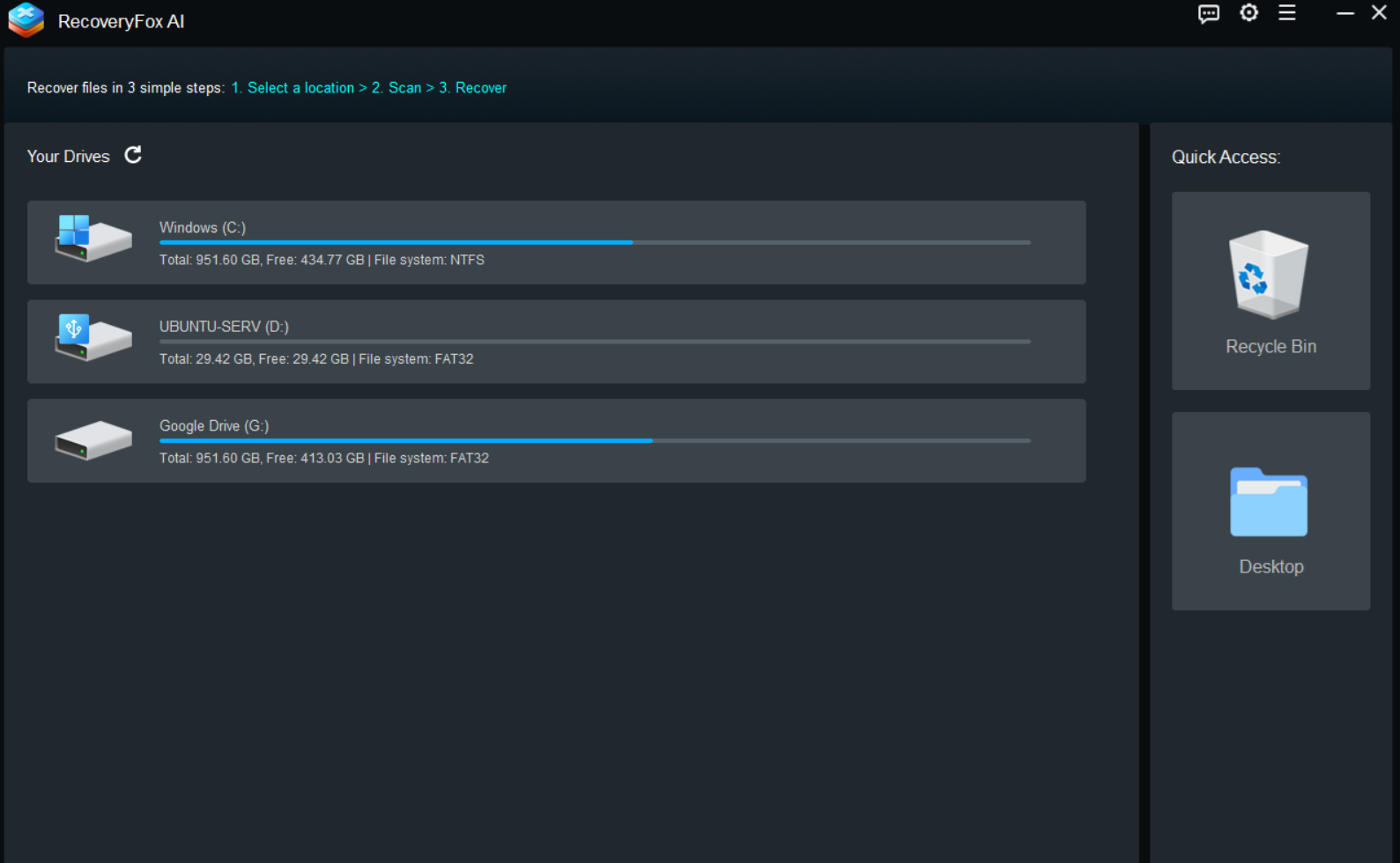
The workflow is straightforward: 1. Select a location > 2. Start scanning > 3. Preview and recover. A list of available drives is shown on the left, with quick-access shortcuts to the Recycle Bin and Desktop on the right.
About the Test Environment
For this test, I used a USB drive.
There are two reasons for this. First, on a PC with a single C: drive, system files get mixed into the scan results, making it harder to evaluate. Second, depending on your setup, files deleted from a USB drive may bypass the Recycle Bin entirely — meaning a simple “oops, wrong file” can result in immediate, permanent deletion. That makes USB drives a good fit for this kind of test.
If your PC has separate C: and D: partitions, think of this test as simulating data loss on the D: drive.
Test 1: Recovering an Excel File
Let’s start with an Excel spreadsheet.
I placed an Excel file on the USB drive, deleted it, and confirmed it was no longer in the Recycle Bin.
After selecting the USB drive in RecoveryFox AI, a Quick Scan starts automatically. This mode focuses on recently deleted data for a fast initial sweep.
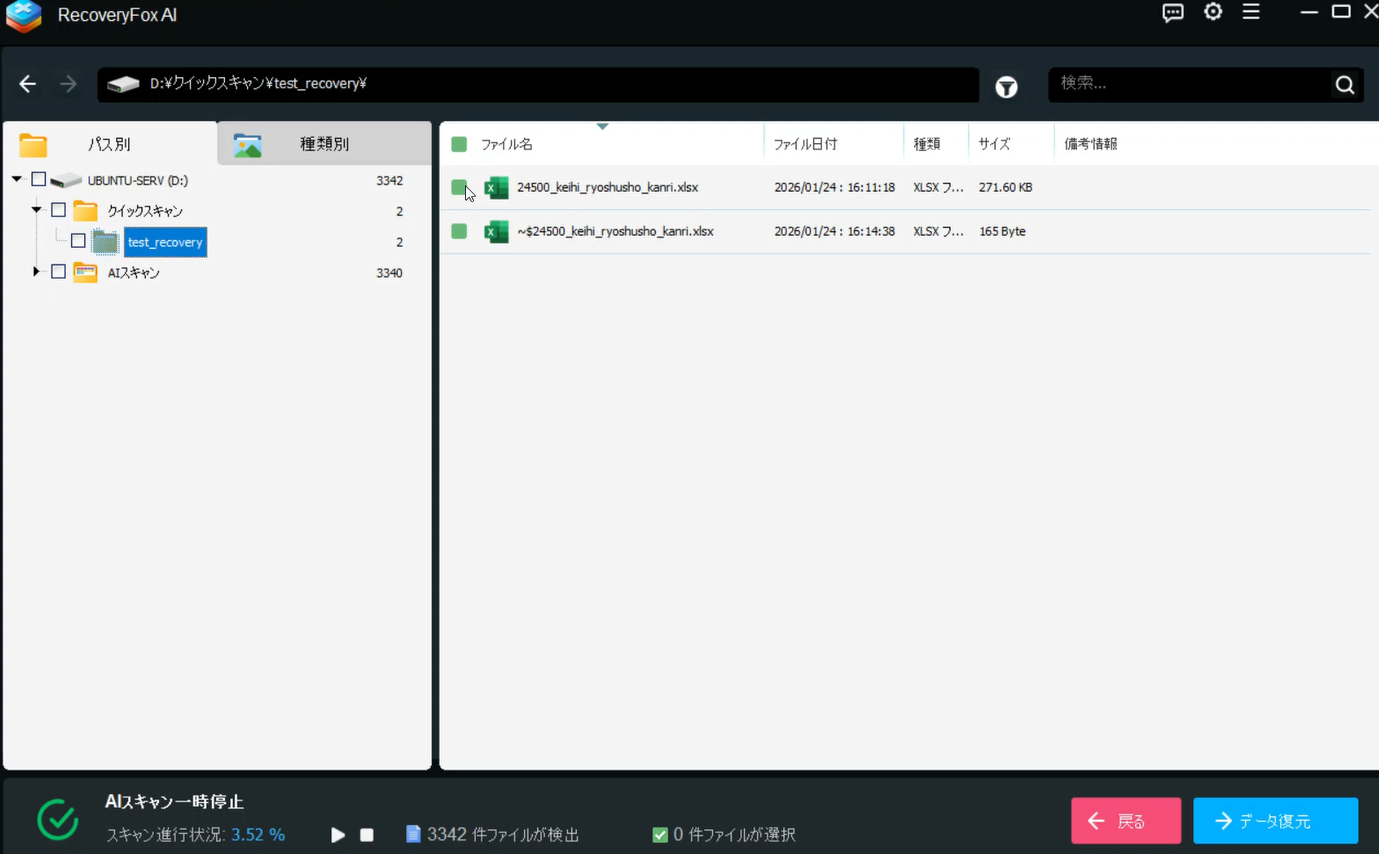
The Excel file appeared almost immediately. The file name, date, and size were all visible.
Important: Save to a Different Drive
One critical rule when recovering files:
Never save the recovered file back to the same drive it was deleted from.
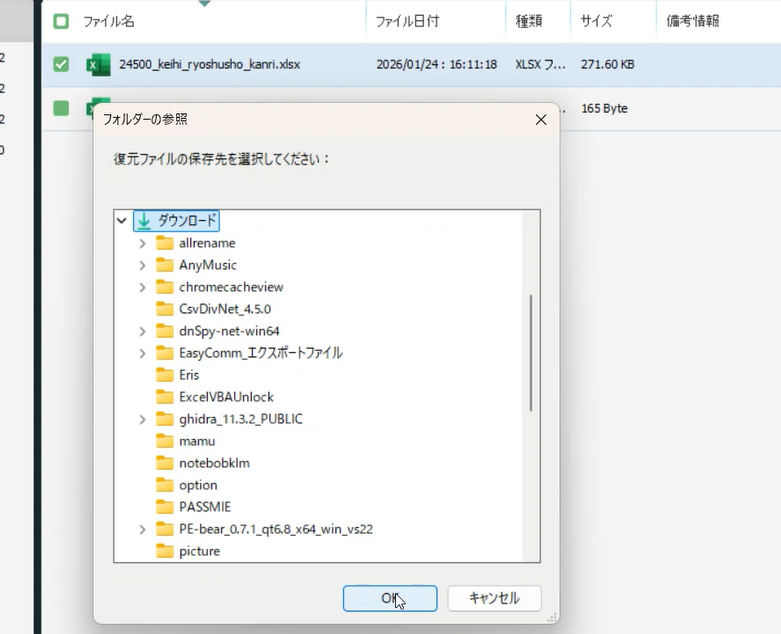
The reason is simple: writing data to the same drive during recovery can overwrite traces of other deleted files that haven’t been found yet.
Since the source was the USB drive (D:), I chose a folder on the C: drive as the recovery destination.
When I opened the recovered Excel file, everything — including formulas — was fully intact.
Test 2: Recovering an Image File (Verified with Hash)
Next up: an image file. With Excel, it’s hard to prove that the content is truly identical, so this time I used a more rigorous method.
I used a hash value.
A hash is like a digital fingerprint generated from a file’s contents. If even a single byte is different, the hash changes completely. So if the hash before deletion matches the hash after recovery, the file is a bit-for-bit identical copy.
I recorded the image file’s hash before deletion, then followed the same steps: delete, scan, recover.
Here’s the PowerShell comparison of both hashes:
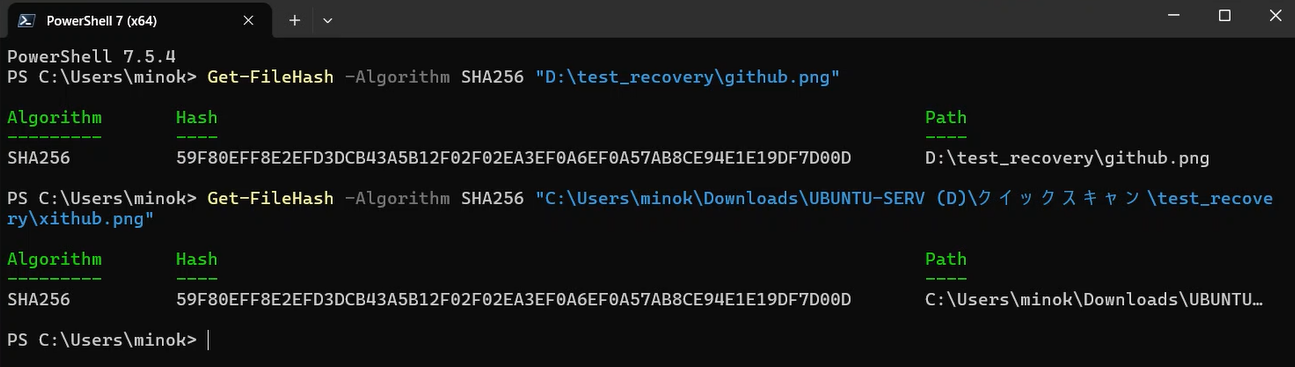
Before deletion: 59F80EFF8E2EFD3DCB43A5B12F02F02EA3EF0A6EF0A57AB8CE94E1E19DF7D00D
After recovery:  59F80EFF8E2EFD3DCB43A5B12F02F02EA3EF0A6EF0A57AB8CE94E1E19DF7D00D
A perfect match. Not just visually identical — proven identical at the data level.
Test 3: Recovering an Audio File (with Special Characters in the File Name)
For the final Quick Scan test, I tried something a little tricky: an audio file with special characters (such as “!”) in the file name.
For audio files, there’s another useful way to verify integrity besides hashing. Using ffprobe, you can check the duration, format, bitrate, and other metadata.
I recorded this information before deletion and compared it after recovery.
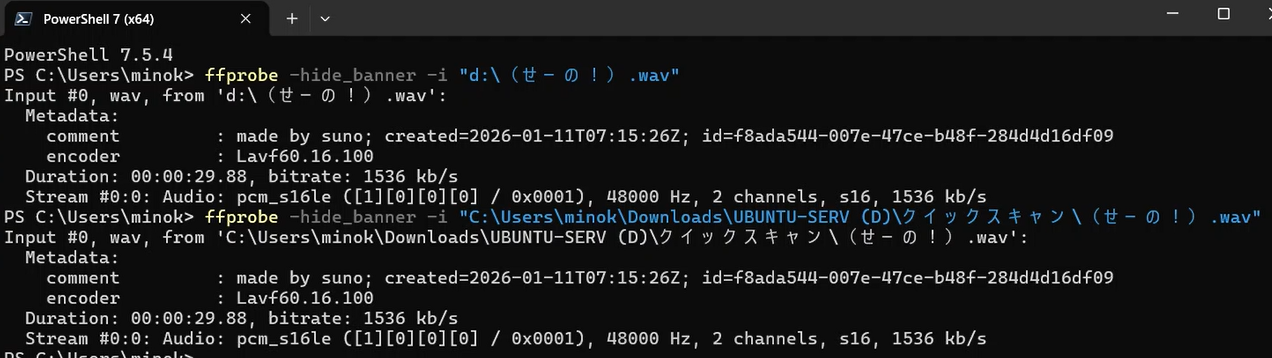
Before deletion: Duration: 00:00:29.88, bitrate: 1536 kb/s, 48000 Hz, 2 channels
After recovery:  Duration: 00:00:29.88, bitrate: 1536 kb/s, 48000 Hz, 2 channels
Duration, bitrate, sample rate, channel count — all identical. Playback was normal as well.
Special characters in the file name caused no issues whatsoever.
Quick Scan vs. AI Scan
RecoveryFox AI offers two scanning modes.
Quick Scan focuses on recently deleted files and returns results fast. All three tests above were completed successfully using this mode alone.
AI Scan digs much deeper. It searches areas of the drive that Quick Scan doesn’t reach, which means it can find files deleted much further in the past. The trade-off is that it takes considerably longer and returns far more results.
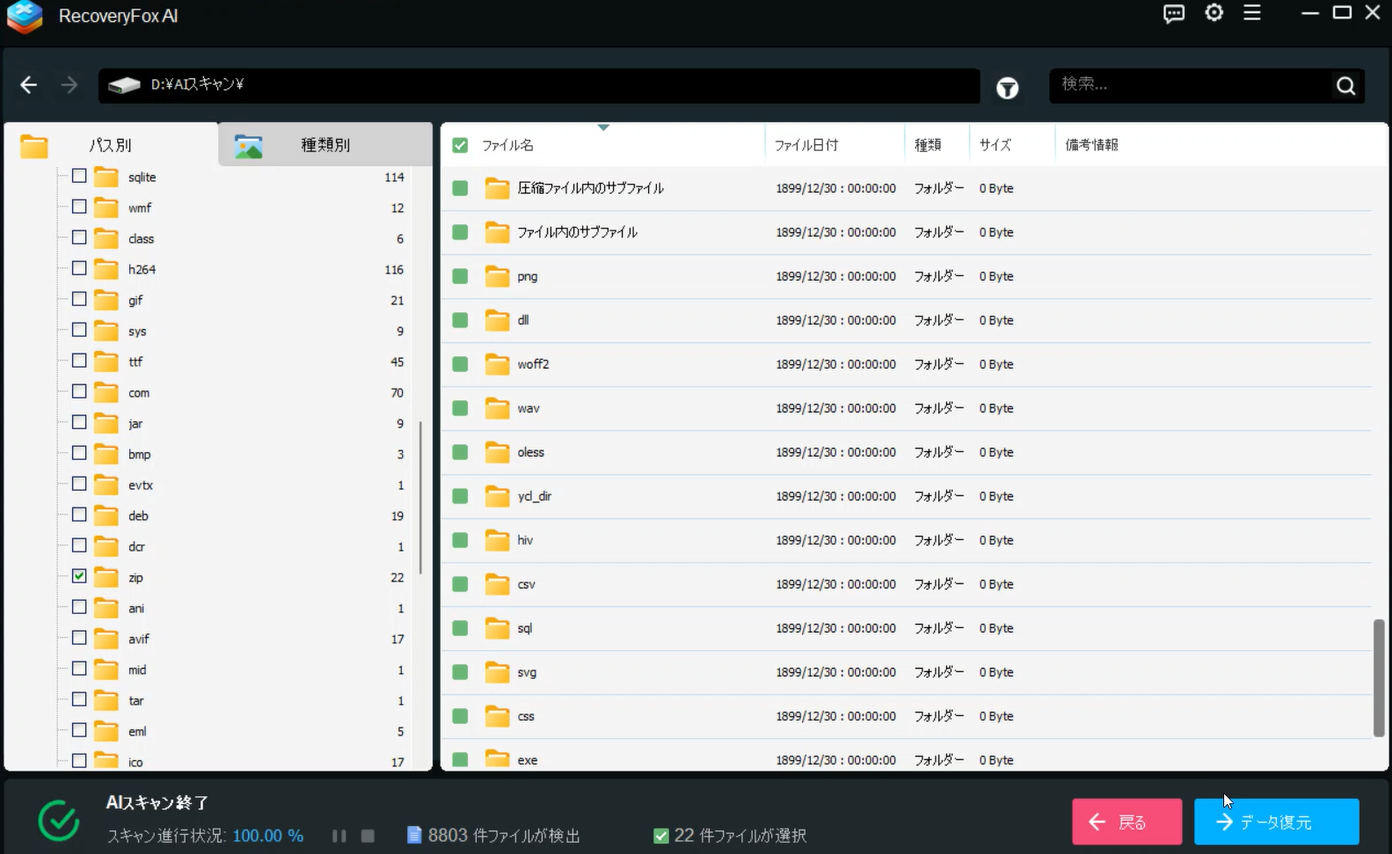
After running AI Scan to completion on the USB drive, it detected 8,803 files — even though the drive appeared empty. That’s because it picks up traces of data that were deleted long ago.
Finding What You Need Among Thousands of Results
With that many results, finding your target file could feel overwhelming. This is where the filtering tools come in handy.
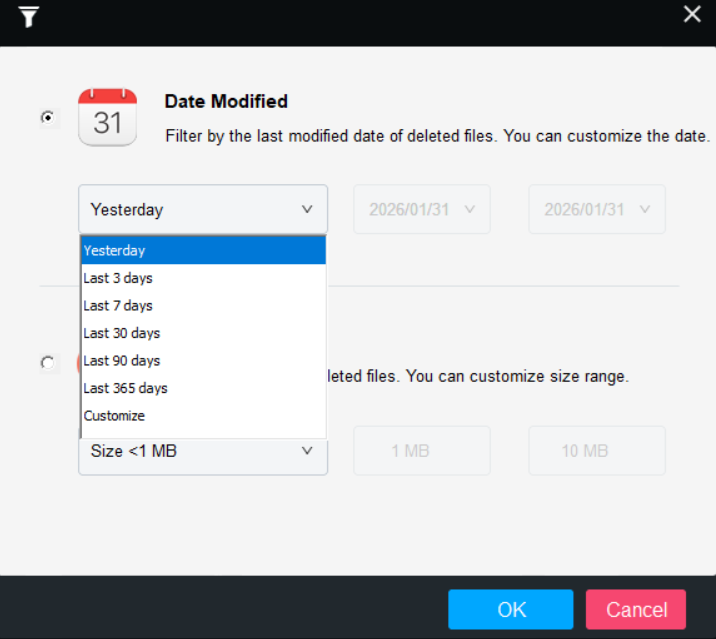
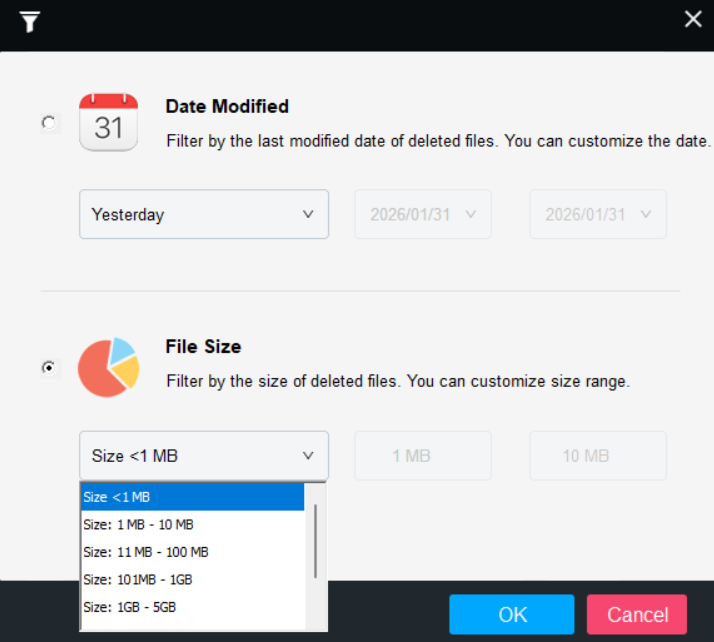
You can narrow results by last modified date (1 day ago, 3 days ago, 7 days ago, etc.) or by file size. For example, setting the filter to “files modified today” makes it easy to zero in on what you just lost.
On the settings side, you can also configure the scan to skip temporary files and sub-files, which speeds things up and reduces noise in the results.
AI Scan Recovery Examples
To see how AI Scan performs in practice, I tested a couple of additional recoveries.
Excel with external functions: I recovered an Excel file that contained formulas linked to an external add-in. The file itself opened without issue. However, because the add-in wasn’t active in my test environment, some formula results appeared incorrect. This wasn’t a recovery failure — it was simply the expected behavior when the linked software isn’t running. In the original environment, the file would work normally.
ZIP archive: AI Scan also surfaced several ZIP files. I recovered one and confirmed that the contents inside were fully intact. ZIP recovery is especially valuable since a single archive can contain many files — recovering one ZIP can effectively rescue an entire batch of data at once.
RecoveryFox AI (1-MONTH)Summary
Using RecoveryFox AI, I tested file recovery across three file types — plus additional tests with AI Scan.
- Excel file: Recovered successfully, formulas intact
- Image file: Hash values matched perfectly — proven identical at the data level
- Audio file: Recovered without issues, even with special characters in the file name
- ZIP archive (AI Scan): Contents fully intact after recovery
All Quick Scan tests found the target files immediately, and recovered files were free of corruption.
The key takeaway: always save recovered files to a different drive. Writing to the same drive risks overwriting deleted data that hasn’t been found yet.
If you’ve accidentally deleted an important file, start with a Quick Scan — it’s fast and covers the most common scenarios. If that doesn’t find what you’re looking for, switch to AI Scan for a deeper search, and use the date and size filters to narrow down the results.
RecoveryFox AI (1-YEAR)