Introduction
Do you use Google NotebookLM?
NotebookLM is a Google research assistant that reads your uploaded materials — PDFs, articles, videos, and more — and answers questions based on their content. It can also auto-generate a variety of artifacts, including Audio Overviews (podcast-style summaries), slides, reports, and more.
The problem? For a long time, NotebookLM had no official backup feature.
“What if I lose all the notebooks I’ve carefully organized?” “What if something happens to my account?”
To address these concerns, I built a tool in collaboration with the AI assistants Claude and Codex. That tool is notebooklm-tui, and I’d like to introduce it here.
Honestly, the fact that someone like me — not a professional software engineer — can build a tool like this is a testament to what the AI era makes possible. It’s no wonder SaaS companies and software firms are seeing their stock prices decline. I even recommended to an acquaintance that they could prepare legal documents without a lawyer using AI, and they reported that it actually held up well in court. In an age where AI is lowering the barriers to specialized knowledge, there’s no reason not to take advantage of it.
What Is NotebookLM?
Google NotebookLM is a tool where an AI answers your questions based on the materials (sources) you upload. Unlike general-purpose chatbots, its key feature is providing answers grounded in your own materials.
- Supports a wide range of formats: PDFs, Word docs, text, images, videos, audio, and more
- Automatically generates “podcast-style audio summaries,” slides, reports, and other artifacts from your uploaded materials
- Lets you query and research across multiple sources at once
It’s widely used for research, studying, business analysis, and much more.
The Problem: No Official Backup
NotebookLM is incredibly useful, but there’s a catch: there’s no official way to export your data.
- Source files you’ve added to notebooks
- AI-generated artifacts (audio, slides, reports, etc.)
- Notes you’ve written yourself
All of this exists only in the cloud, leaving your data at risk of being lost.
The Solution: notebooklm-tui
That’s why I built notebooklm-tui with Claude.
GitHub Repository: https://github.com/superdoccimo/notebooklm-tui
The standout feature of this tool:
Zero external dependencies — runs entirely on the Python standard library!
You don’t even need pip install requests. If you have Python, you’re good to go.
Built Through Collaboration with AI
This tool was born out of a dialogue between me and AI assistants.
Starting from the challenge of “I want to back up my NotebookLM data,” I discussed architecture with the AI assistants, and together we designed and wrote the code.
- Reverse-engineering Google NotebookLM’s internal API
- Accessing cookies from Chromium browsers (via CDP) and Firefox’s cookie database
- Designing and implementing the terminal UI
- Cross-platform support for both Windows and Linux
It’s truly a product of human–AI collaboration.
Feature Overview
notebooklm-tui consists of five sub-tools:
| Tool | Purpose |
|---|---|
nlm-login | Automatically retrieves authentication cookies from your browser |
nlm-backup | Bulk-downloads sources, artifacts, and notes |
nlm-upload | Bulk-uploads files and URLs; restores from backups |
nlm-tui | Terminal UI with a Japanese interface |
nlm-tui-en | Terminal UI with an English interface |
Note: nlm-tui and nlm-tui-en (i.e., nlm_tui.py and nlm_tui_en.py) are functionally identical — the only difference is the UI language. English speakers should use nlm-tui-en (nlm_tui_en.py).
Installation and Usage
Step 1: Clone
git clone https://github.com/superdoccimo/notebooklm-tui.git
cd notebooklm-tui
Step 2: Authenticate
python nlm_login.py
A browser window will open automatically. Log in to NotebookLM with your Google account, and once you see the home screen, switch back to your terminal and press Enter. Your cookies will be saved automatically.
Supported browsers: Edge / Chrome / Brave / Firefox
# To specify a browser
python nlm_login.py --browser chrome
python nlm_login.py --browser firefox
Step 3: Back Up
# List your notebooks
python nlm_backup.py --list

# Back up all notebooks at once
python nlm_backup.py --all
That’s all it takes to save all of your notebook data locally!
What Gets Downloaded
Backups include the following data:
Sources (what you uploaded)
| Type | Saved As |
|---|---|
| Text / Markdown | .md |
| Websites / URLs | .md (extracted text) |
| Images | .png |
| PDFs | Per-page images (.png) |
Artifacts (generated by NotebookLM)
| Type | Saved As |
|---|---|
| Audio Overview | .m4a |
| Video Overview | .mp4 |
| Slide Deck | .pdf |
| Report | .md |
| Data Table | .csv |
| Flashcards | .md |
| Infographic | .png |
Notes
| Type | Saved As |
|---|---|
| User Notes | .md |
Folder Structure
downloads/
└── <Notebook Title>/
    ├── metadata.json          # Notebook metadata
    ├── sources/               # Source files
    │   ├── document.md
    │   ├── photo.png
    │   └── report/            # PDF (per page)
    │       ├── page1.png
    │       └── page2.png
    ├── artifacts/             # Generated content
    │   ├── audio_overview.m4a
    │   ├── slide_deck.pdf
    │   └── report.md
    └── notes/                 # Notes
        └── my_note.md
Everything is saved in a clean folder structure, making it easy to manage your backup files.
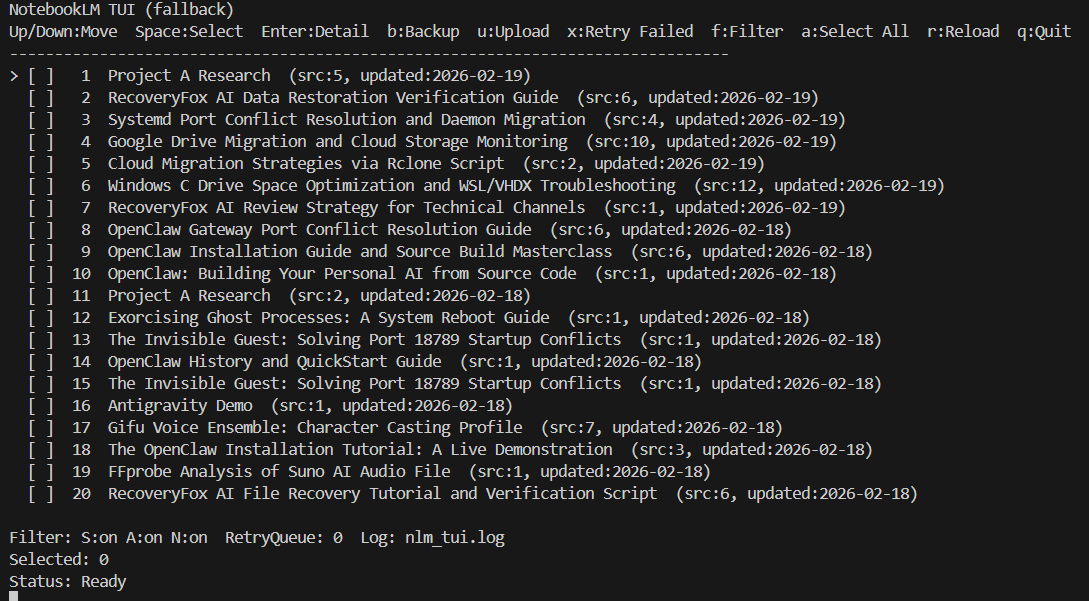
The TUI: Easy Terminal-Based Navigation
Even if you’re not comfortable with the command line, the TUI makes things intuitive.
# Launch with the English UI
python nlm_tui_en.py
Key Bindings
| Key | Action |
|---|---|
↑ / ↓ (or j / k) | Navigate notebooks |
Space | Select / deselect a notebook |
Enter | Show source / artifact / note tree |
b | Back up selected notebooks |
u | Open the upload menu |
x | Retry failed items only |
f | Filter backup targets |
a | Select / deselect all |
r | Refresh the list |
q | Quit |
Upload and Restore
In addition to backups, you can also upload and restore data.
# Upload files to a new notebook
python nlm_upload.py "My Research" paper.pdf notes.md

# Restore from a backup
python nlm_upload.py --restore ./downloads/My_Notebook/

# Add a URL as a source
python nlm_upload.py "Web Research" --url https://example.com
With a backup in place, you can fully restore even a notebook you accidentally deleted.
How It Works
This tool calls Google NotebookLM’s internal batchexecute API directly.
nlm_login.py            ← Authentication (Chromium: CDP / Firefox: cookies.sqlite)
notebooklm_client.py    ← API client (batchexecute RPC)
├── nlm_backup.py       ← Backup
├── nlm_upload.py       ← Upload / Restore
├── nlm_tui.py          ← Japanese TUI
└── nlm_tui_en.py       ← English TUI
- Chromium browsers (Edge/Chrome/Brave): Retrieves cookies via the Chrome DevTools Protocol (CDP)
- Firefox: Reads cookies directly from the profile’s
cookies.sqlite - Networking: Uses only
urllibandhttp.cookiejar(no third-party packages required)
Supported File Formats (Upload)
| Category | Extensions |
|---|---|
| Documents | .pdf .txt .md .doc .docx .ppt .pptx .xls .xlsx |
| Data | .csv .tsv .json .xml |
| Web | .html .htm |
| Audio | .mp3 .wav .m4a .ogg .flac |
| Video | .mp4 .mov .avi .mkv .webm |
| Images | .png .jpg .jpeg .gif .bmp .webp |
Installation (Optional)
You can also install the tools as system-wide commands:
pip install .
# → Makes nlm-backup, nlm-upload, nlm-login, nlm-tui, and nlm-tui-en available as commands
Once installed, you can run commands like nlm-backup --all from any directory.
Troubleshooting
“Authentication expired” error
Your authentication cookies have expired. Simply log in again:
python nlm_login.py
PDFs are downloaded as images
This is by design. NotebookLM renders uploaded PDFs page by page and stores them as images internally, so backups save each page as a PNG file.
Summary
Here’s what makes notebooklm-tui stand out:
- No external libraries required — uses only the Python standard library
- Multi-browser support — Edge / Chrome / Brave / Firefox
- Cross-platform — Windows / Linux
- Backs up sources, artifacts, and notes
- Intuitive TUI for easy operation
- Restore from backups
If you use NotebookLM regularly, consider making periodic backups a habit.
GitHub: https://github.com/superdoccimo/notebooklm-tui
This tool was born from human–AI collaboration — give it a try! Feedback and suggestions for improvement are always welcome.
This tool is released under the MIT License.