Introduction to Automating Excel Data Processing: Complete Beginner’s Guide
Getting Started: What You Need to Know
Looking to streamline your Excel tasks but unsure where to begin? This comprehensive tutorial provides step-by-step instructions that guarantee success, even for complete beginners. We’ve updated this guide for 2025 with the latest package versions and best practices.
⚠️ Important Updates (September 2025)
- Uses pandas 2.3.2 (released August 21, 2025)
- Compatible with openpyxl 3.1.4 (latest stable version)
- Includes detailed error handling and troubleshooting
- Tested on Windows 11, macOS Ventura/Sonoma, and Ubuntu 22.04/24.04
What You’ll Learn in This Tutorial
- Environment Setup with Verification: Complete setup guide with verification scripts
- Creating and Using Sample Data: Generate your own datasets or download pre-made ones
- Excel Automation Fundamentals: Understanding pandas and openpyxl integration
- Data Cleaning Techniques: Professional methods for data preparation
- Error Prevention and Troubleshooting: Solutions for common problems
Part 1: Setting Up Your Python Environment
Step 1.1: Install Python and Verify Installation
For Windows Users:
# Open Command Prompt as Administrator
# Check if Python is installed
python --version

# If not installed, download from python.org
# Ensure you check "Add Python to PATH" during installation
For macOS/Linux Users:
# Open Terminal
python3 --version

# If not installed:
# macOS: brew install python3
# Ubuntu/Debian: sudo apt-get install python3 python3-pip
Step 1.2: Create a Virtual Environment (Highly Recommended)
Creating a virtual environment prevents package conflicts:
# Create virtual environment
python -m venv excel_automation

# Activate it
# Windows:
excel_automation\Scripts\activate
# macOS/Linux:
source excel_automation/bin/activate
Step 1.3: Install Required Packages
Essential packages for Excel automation:
# Install all required packages at once
pip install pandas==2.3.2 openpyxl==3.1.4 numpy xlsxwriter

# Verify installation
pip list | grep -E "pandas|openpyxl|numpy|xlsxwriter"
Step 1.4: Verification Script
Create a file named verify_installation.py:
"""
Installation Verification Script
Save this as verify_installation.py and run it
"""

import sys
import importlib

def check_package(package_name, min_version=None):
    """Check if a package is installed and meets minimum version"""
    try:
        module = importlib.import_module(package_name)
        version = getattr(module, '__version__', 'Unknown')

        # Special handling for xlsxwriter
        if package_name == 'xlsxwriter':
            import xlsxwriter
            version = xlsxwriter.__version__

        print(f"✅ {package_name}: Version {version}")

        if min_version and version != 'Unknown':
            # Simple version comparison (may need enhancement for complex versions)
            if version >= min_version:
                print(f"   Version meets requirement (>= {min_version})")
            else:
                print(f"   ⚠️ Warning: Version {version} is older than recommended {min_version}")

        return True
    except ImportError:
        print(f"❌ {package_name}: Not installed")
        return False

def main():
    print("=" * 60)
    print("Excel Automation Environment Check")
    print("=" * 60)

    # Check Python version
    print(f"Python: {sys.version}")
    python_version = sys.version_info
    if python_version.major >= 3 and python_version.minor >= 8:
        print("✅ Python version is suitable (3.8+)")
    else:
        print("⚠️ Python 3.8+ is recommended")

    print("-" * 60)
    print("Checking required packages...")

    # Define required packages with minimum versions
    packages = {
        'pandas': '2.0.0',
        'openpyxl': '3.1.0',
        'numpy': None,
        'xlsxwriter': None
    }

    all_installed = True
    for package, min_version in packages.items():
        if not check_package(package, min_version):
            all_installed = False

    print("=" * 60)

    if all_installed:
        print("✨ All packages are installed successfully!")
        print("You can proceed to the next step.")
    else:
        print("⚠️ Some packages are missing.")
        print("Please install them using:")
        print("pip install pandas openpyxl numpy xlsxwriter")

    return all_installed

if __name__ == "__main__":
    success = main()
    sys.exit(0 if success else 1)
Run the verification:
python verify_installation.py
Part 2: Creating Sample Data
Option 1: Generate Your Own Sample Data with Python
Save this enhanced script as generate_sample_data.py:
"""
Sample Data Generator for Excel Automation Tutorial
This script creates realistic sample data for testing
"""

import pandas as pd
import numpy as np
import datetime
import os
import sys

def ensure_directory_exists(directory):
    """Create directory if it doesn't exist"""
    if not os.path.exists(directory):
        os.makedirs(directory)
        print(f"📁 Created directory: {directory}")
        return True
    return False

def generate_sales_data():
    """Generate comprehensive sales data for 2024"""
    print("\n📊 Generating sales data...")

    # Set random seed for reproducibility
    np.random.seed(42)

    # Generate dates for 2024
    start_date = datetime.datetime(2024, 1, 1)
    dates = [start_date + datetime.timedelta(days=x) for x in range(365)]

    # Product categories
    categories = ['Stationery', 'Electronics', 'Food', 'Apparel', 'Household']

    # Sales representatives
    sales_reps = [f'Rep {i}' for i in range(1, 6)]

    # Generate data
    data = []
    for date in dates:
        # Generate 3-7 transactions per day
        num_transactions = np.random.randint(3, 8)

        for _ in range(num_transactions):
            record = {
                'Date': date,
                'Year-Month': date.strftime('%Y-%m'),
                'Product Category': np.random.choice(categories),
                'Sales Amount': np.random.randint(1000, 100000),
                'Sales Rep': np.random.choice(sales_reps),
                'Transaction ID': f"TXN{date.strftime('%Y%m%d')}{np.random.randint(1000, 9999)}"
            }
            data.append(record)

    # Create DataFrame
    df = pd.DataFrame(data)

    # Add calculated columns
    df['Quarter'] = df['Date'].dt.quarter
    df['Day of Week'] = df['Date'].dt.day_name()

    print(f"  Generated {len(df)} records")

    # Split data into three files
    ensure_directory_exists('excel_files')

    # Calculate split points
    split_size = len(df) // 3
    splits = [
        df.iloc[:split_size],
        df.iloc[split_size:split_size*2],
        df.iloc[split_size*2:]
    ]

    # Save each split
    for i, split_df in enumerate(splits, 1):
        filename = f'excel_files/sales_data_{i}.xlsx'

        # Use ExcelWriter for better control
        with pd.ExcelWriter(filename, engine='openpyxl') as writer:
            split_df.to_excel(writer, sheet_name='Sales Data', index=False)

        print(f"  ✅ Saved: {filename} ({len(split_df)} rows)")

    # Save original consolidated data
    with pd.ExcelWriter('sales_data_original.xlsx', engine='openpyxl') as writer:
        df.to_excel(writer, sheet_name='All Sales', index=False)

        # Add a summary sheet
        summary = pd.DataFrame({
            'Metric': ['Total Records', 'Date Range', 'Categories', 'Sales Reps'],
            'Value': [
                len(df),
                f"{df['Date'].min().date()} to {df['Date'].max().date()}",
                len(df['Product Category'].unique()),
                len(df['Sales Rep'].unique())
            ]
        })
        summary.to_excel(writer, sheet_name='Summary', index=False)

    print(f"  ✅ Saved: sales_data_original.xlsx ({len(df)} rows)")

    return df

def generate_messy_data():
    """Generate data with common quality issues for cleaning practice"""
    print("\n🧹 Generating messy data for cleaning practice...")

    # Create intentionally messy data
    data = {
        'Customer Name': [
            'John Doe ',          # Trailing space
            ' Jane Smith',        # Leading space
            'Robert Brown  ',     # Multiple trailing spaces
            'John Doe',          # Duplicate (clean)
            '  Jane Smith ',     # Leading and trailing spaces
            'mary johnson',      # Lowercase
            'PETER WILSON',      # Uppercase
            None,               # Missing value
            'Alice-Cooper',     # Special character
            'Bob  Smith'        # Multiple spaces in middle
        ],
        'Age': [30, np.nan, 45, 30, 28, 35, np.nan, 42, 25, 50],
        'Email': [
            'john@example.com',
            'jane@example.com',
            '',                  # Empty string
            'john@example.com',  # Duplicate
            'jane_h@example.com',
            'MARY@EXAMPLE.COM',  # Uppercase
            'peter@',           # Invalid format
            None,               # Missing
            'alice@example',    # Missing domain extension
            'bob@example.com'
        ],
        'Purchase Amount': [5000, 3000, 4000, 5000, 3000, 2500, 4500, None, 3500, 6000],
        'Registration Date': [
            '2024-01-15',
            '2024/02/20',      # Different format
            '15-03-2024',      # Different format
            '2024-01-15',      # Duplicate date
            '2024-04-10',
            '05/15/2024',      # US format
            '2024-06-30',
            None,              # Missing
            '2024-07-20',
            'Invalid Date'     # Invalid
        ]
    }

    df = pd.DataFrame(data)

    # Save to Excel with formatting issues
    with pd.ExcelWriter('messy_data.xlsx', engine='openpyxl') as writer:
        df.to_excel(writer, sheet_name='Customer Data', index=False)

    print(f"  ✅ Saved: messy_data.xlsx ({len(df)} rows with various data quality issues)")

    # Create a reference clean version for comparison
    clean_data = {
        'Customer Name': [
            'John Doe',
            'Jane Smith',
            'Robert Brown',
            'John Doe',
            'Jane Smith',
            'Mary Johnson',
            'Peter Wilson',
            'Unknown',
            'Alice Cooper',
            'Bob Smith'
        ],
        'Age': [30, 35, 45, 30, 28, 35, 40, 42, 25, 50],  # Filled missing with average
        'Email': [
            'john@example.com',
            'jane@example.com',
            'robert@example.com',
            'john@example.com',
            'jane_h@example.com',
            'mary@example.com',
            'peter@example.com',
            'unknown@example.com',
            'alice@example.com',
            'bob@example.com'
        ],
        'Purchase Amount': [5000, 3000, 4000, 5000, 3000, 2500, 4500, 3900, 3500, 6000],
        'Registration Date': pd.to_datetime([
            '2024-01-15', '2024-02-20', '2024-03-15', '2024-01-15',
            '2024-04-10', '2024-05-15', '2024-06-30', '2024-07-01',
            '2024-07-20', '2024-08-01'
        ])
    }

    clean_df = pd.DataFrame(clean_data)

    with pd.ExcelWriter('messy_data_reference.xlsx', engine='openpyxl') as writer:
        clean_df.to_excel(writer, sheet_name='Clean Reference', index=False)

    print(f"  ✅ Saved: messy_data_reference.xlsx (reference clean version)")

    return df, clean_df

def main():
    """Main execution function"""
    print("=" * 70)
    print("Excel Automation Tutorial - Sample Data Generator")
    print("=" * 70)

    try:
        # Generate sales data
        sales_df = generate_sales_data()

        # Generate messy data
        messy_df, clean_df = generate_messy_data()

        # Summary
        print("\n" + "=" * 70)
        print("📋 Generated Files Summary:")
        print("=" * 70)
        print("\n📁 excel_files/")
        print("  ├── sales_data_1.xlsx    (Split sales data - Part 1)")
        print("  ├── sales_data_2.xlsx    (Split sales data - Part 2)")
        print("  └── sales_data_3.xlsx    (Split sales data - Part 3)")
        print("\n📄 Root directory:")
        print("  ├── sales_data_original.xlsx    (Complete sales dataset)")
        print("  ├── messy_data.xlsx            (Data with quality issues)")
        print("  └── messy_data_reference.xlsx  (Clean reference version)")

        # Image placeholder explanation
        print("\n📸 Note: The original article showed Excel screenshots here.")
        print("   Open the generated files to see:")
        print("   - Well-structured sales data with dates, categories, and amounts")
        print("   - Intentionally messy customer data for cleaning practice")
        print("   - Clean reference data for comparison")

        print("\n✨ Sample data generation complete!")
        print("Next step: Run excel_automation.py to process this data")

        return True

    except Exception as e:
        print(f"\n❌ Error occurred: {str(e)}")
        print("\nTroubleshooting:")
        print("1. Ensure all required packages are installed")
        print("2. Check write permissions in current directory")
        print("3. Close any Excel files that might be open")
        return False

if __name__ == "__main__":
    success = main()
    sys.exit(0 if success else 1)
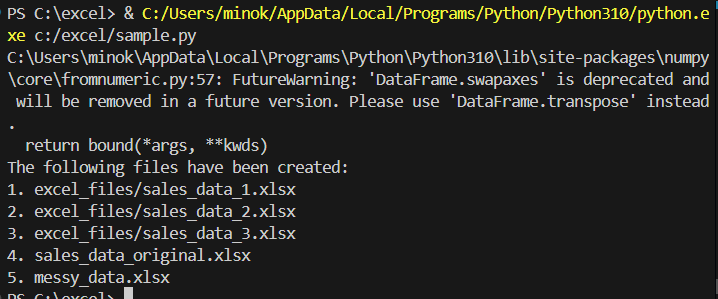
Option 2: Download Sample Data
For beginners who prefer to skip the script creation process, you can directly download the sample datasets:
Download Sample Data (sales_data_original.zip)
What’s Included in the ZIP File:
- Sales Data (3 split files for merging practice)
- Messy Data (for cleaning practice)
- Clean Reference Data (for verification)
Overview of the Sample Data
1. Sales Data (sales_data_*.xlsx)
Comprehensive daily sales dataset for 2024 including:
Columns:
- Date: Transaction date
- Year-Month: Formatted as YYYY-MM for grouping
- Product Category: (Stationery, Electronics, Food, Apparel, Household)
- Sales Amount: Transaction value in currency
- Sales Rep: Sales representative ID
- Transaction ID: Unique identifier
- Quarter: Quarter of the year (1-4)
- Day of Week: Monday through Sunday
2. Data for Cleaning (messy_data.xlsx)
This file contains intentionally “messy” data with common issues:
- Duplicate entries: Same customer appearing multiple times
- Missing values: Empty cells and NaN values
- Inconsistent formatting: Mixed date formats, varying text cases
- Extra spaces: Leading, trailing, and multiple spaces
- Invalid data: Incorrect email formats, invalid dates
3. Reference Data (sales_data_original.xlsx and messy_data_reference.xlsx)
Clean, complete versions of the datasets used for:
- Validating automation results
- Comparing before/after cleaning
- Serving as the “golden standard” for data quality
Part 3: Excel Automation Script
Complete Automation Script with Error Handling
Save this as excel_automation.py:
"""
Excel Automation Main Script
Comprehensive data processing with detailed feedback
Run this after generating sample data
"""

import pandas as pd
import os
import glob
import sys
from datetime import datetime
import warnings

# Suppress openpyxl warnings for cleaner output
warnings.filterwarnings('ignore', category=UserWarning, module='openpyxl')

class ExcelAutomation:
    """Main class for Excel automation tasks"""

    def __init__(self):
        """Initialize the automation class"""
        self.combined_sales = None
        self.monthly_summary = None
        self.category_summary = None
        self.cleaned_data = None

    def verify_prerequisites(self):
        """Check if all required files exist"""
        print("\n🔍 Verifying required files...")

        required_files = [
            ('excel_files/sales_data_1.xlsx', 'Split sales data part 1'),
            ('excel_files/sales_data_2.xlsx', 'Split sales data part 2'),
            ('excel_files/sales_data_3.xlsx', 'Split sales data part 3'),
            ('messy_data.xlsx', 'Customer data for cleaning')
        ]

        missing_files = []

        for filepath, description in required_files:
            if os.path.exists(filepath):
                print(f"  ✅ Found: {description}")
            else:
                print(f"  ❌ Missing: {description} ({filepath})")
                missing_files.append(filepath)

        if missing_files:
            print("\n⚠️ Missing files detected!")
            print("Please run 'python generate_sample_data.py' first")
            return False

        print("  All required files present!")
        return True

    def combine_excel_files(self, folder_path):
        """
        Merge all Excel files in the specified folder

        Parameters:
        -----------
        folder_path : str
            Path to folder containing Excel files

        Returns:
        --------
        pd.DataFrame: Combined dataframe
        """
        print(f"\n📂 Combining Excel files from: {folder_path}")

        # Find all sales_data_*.xlsx files
        pattern = os.path.join(folder_path, "sales_data_*.xlsx")
        all_files = sorted(glob.glob(pattern))

        if not all_files:
            raise FileNotFoundError(f"No files matching pattern: {pattern}")

        print(f"  Found {len(all_files)} files to combine")

        # Read and combine files
        df_list = []
        total_rows = 0

        for i, filepath in enumerate(all_files, 1):
            filename = os.path.basename(filepath)
            print(f"  Reading file {i}/{len(all_files)}: {filename}")

            try:
                # Read with explicit engine
                df = pd.read_excel(filepath, engine='openpyxl')
                rows = len(df)
                print(f"    → Loaded {rows:,} rows")

                df_list.append(df)
                total_rows += rows

            except Exception as e:
                print(f"    ❌ Error reading {filename}: {e}")
                raise

        # Combine all dataframes
        print(f"\n  Combining {len(df_list)} dataframes...")
        combined_df = pd.concat(df_list, ignore_index=True)

        # Verify combination
        if len(combined_df) != total_rows:
            print(f"  ⚠️ Warning: Expected {total_rows} rows, got {len(combined_df)}")
        else:
            print(f"  ✅ Successfully combined {total_rows:,} rows")

        # Sort by date for better organization
        if 'Date' in combined_df.columns:
            combined_df = combined_df.sort_values('Date')
            print("  ✅ Sorted data by date")

        self.combined_sales = combined_df
        return combined_df

    def analyze_sales(self, df):
        """
        Perform comprehensive sales analysis

        Parameters:
        -----------
        df : pd.DataFrame
            Sales dataframe to analyze

        Returns:
        --------
        tuple: (monthly_summary, category_summary, statistics)
        """
        print("\n📊 Analyzing sales data...")

        # Ensure we have the required columns
        required_cols = ['Year-Month', 'Sales Amount', 'Product Category']
        missing_cols = [col for col in required_cols if col not in df.columns]

        if missing_cols:
            raise ValueError(f"Missing required columns: {missing_cols}")

        # Monthly analysis
        print("  Calculating monthly statistics...")
        monthly_summary = df.groupby('Year-Month')['Sales Amount'].agg([
            ('Total Sales', 'sum'),
            ('Average Sale', 'mean'),
            ('Transaction Count', 'count'),
            ('Min Sale', 'min'),
            ('Max Sale', 'max')
        ]).round(2)

        print(f"    → Analyzed {len(monthly_summary)} months")

        # Category analysis
        print("  Analyzing product categories...")
        category_summary = df.groupby('Product Category').agg({
            'Sales Amount': ['sum', 'mean', 'count']
        }).round(2)

        category_summary.columns = ['Total Sales', 'Average Sale', 'Transaction Count']
        category_summary = category_summary.sort_values('Total Sales', ascending=False)

        print(f"    → Analyzed {len(category_summary)} categories")

        # Overall statistics
        print("\n  📈 Key Statistics:")
        total_sales = df['Sales Amount'].sum()
        avg_sale = df['Sales Amount'].mean()
        print(f"    Total Sales: ${total_sales:,.2f}")
        print(f"    Average Sale: ${avg_sale:,.2f}")
        print(f"    Total Transactions: {len(df):,}")

        # Top performing category
        top_category = category_summary.index[0]
        top_sales = category_summary.iloc[0]['Total Sales']
        print(f"    Top Category: {top_category} (${top_sales:,.2f})")

        self.monthly_summary = monthly_summary
        self.category_summary = category_summary

        return monthly_summary, category_summary

    def clean_customer_data(self, df):
        """
        Clean customer data with detailed reporting

        Parameters:
        -----------
        df : pd.DataFrame
            Customer dataframe to clean

        Returns:
        --------
        pd.DataFrame: Cleaned dataframe
        """
        print("\n🧹 Cleaning customer data...")

        # Record initial state
        initial_rows = len(df)
        initial_nulls = df.isnull().sum().sum()

        # Create working copy
        cleaned = df.copy()

        # Step 1: Trim whitespace
        print("  Step 1: Removing extra whitespace...")
        text_columns = cleaned.select_dtypes(include=['object']).columns

        for col in text_columns:
            if col in cleaned.columns:
                # Handle None values
                cleaned[col] = cleaned[col].fillna('')
                # Strip whitespace
                cleaned[col] = cleaned[col].str.strip()
                # Replace multiple spaces with single space
                cleaned[col] = cleaned[col].str.replace(r'\s+', ' ', regex=True)
                # Replace empty strings with None
                cleaned[col] = cleaned[col].replace('', None)

        print(f"    → Cleaned {len(text_columns)} text columns")

        # Step 2: Standardize text case
        print("  Step 2: Standardizing text format...")
        if 'Customer Name' in cleaned.columns:
            cleaned['Customer Name'] = cleaned['Customer Name'].str.title()
        if 'Email' in cleaned.columns:
            cleaned['Email'] = cleaned['Email'].str.lower()

        # Step 3: Remove duplicates
        print("  Step 3: Removing duplicate rows...")
        before_dedup = len(cleaned)
        cleaned = cleaned.drop_duplicates()
        duplicates_removed = before_dedup - len(cleaned)
        print(f"    → Removed {duplicates_removed} duplicate rows")

        # Step 4: Handle missing values
        print("  Step 4: Handling missing values...")

        # Fill numeric columns with appropriate values
        if 'Age' in cleaned.columns:
            mean_age = cleaned['Age'].mean()
            cleaned['Age'] = cleaned['Age'].fillna(round(mean_age))
            print(f"    → Filled missing ages with average: {mean_age:.0f}")

        if 'Purchase Amount' in cleaned.columns:
            median_amount = cleaned['Purchase Amount'].median()
            cleaned['Purchase Amount'] = cleaned['Purchase Amount'].fillna(median_amount)
            print(f"    → Filled missing amounts with median: ${median_amount:,.2f}")

        # Step 5: Validate and fix email formats
        if 'Email' in cleaned.columns:
            print("  Step 5: Validating email addresses...")

            # Simple email validation
            email_pattern = r'^[a-z0-9._%+-]+@[a-z0-9.-]+\.[a-z]{2,}$'
            valid_emails = cleaned['Email'].str.match(email_pattern, na=False)
            invalid_count = (~valid_emails).sum()

            if invalid_count > 0:
                print(f"    → Found {invalid_count} invalid email addresses")
                # Replace invalid emails with a placeholder
                cleaned.loc[~valid_emails, 'Email'] = 'invalid@example.com'

        # Step 6: Standardize date formats
        if 'Registration Date' in cleaned.columns:
            print("  Step 6: Standardizing date formats...")
            try:
                cleaned['Registration Date'] = pd.to_datetime(
                    cleaned['Registration Date'],
                    errors='coerce'
                )
                invalid_dates = cleaned['Registration Date'].isnull().sum()
                if invalid_dates > 0:
                    print(f"    → Found {invalid_dates} invalid dates, set to None")
            except Exception as e:
                print(f"    ⚠️ Could not parse dates: {e}")

        # Summary report
        print("\n  📋 Cleaning Summary:")
        print(f"    Original rows: {initial_rows}")
        print(f"    Final rows: {len(cleaned)}")
        print(f"    Rows removed: {initial_rows - len(cleaned)}")
        print(f"    Null values fixed: {initial_nulls - cleaned.isnull().sum().sum()}")

        self.cleaned_data = cleaned
        return cleaned

    def create_comprehensive_report(self, output_file='analysis_results.xlsx'):
        """
        Create detailed Excel report with multiple sheets

        Parameters:
        -----------
        output_file : str
            Output filename for the report

        Returns:
        --------
        bool: Success status
        """
        print(f"\n📝 Creating comprehensive report: {output_file}")

        try:
            # Create Excel writer with specific engine
            with pd.ExcelWriter(output_file, engine='openpyxl') as writer:

                # Sheet 1: Monthly Summary
                if self.monthly_summary is not None:
                    self.monthly_summary.to_excel(
                        writer,
                        sheet_name='Monthly Summary'
                    )
                    print("  ✅ Added Monthly Summary sheet")

                # Sheet 2: Category Analysis
                if self.category_summary is not None:
                    self.category_summary.to_excel(
                        writer,
                        sheet_name='Category Analysis'
                    )
                    print("  ✅ Added Category Analysis sheet")

                # Sheet 3: Cleaned Customer Data
                if self.cleaned_data is not None:
                    self.cleaned_data.to_excel(
                        writer,
                        sheet_name='Cleaned Customers',
                        index=False
                    )
                    print("  ✅ Added Cleaned Customers sheet")

                # Sheet 4: Data Sample
                if self.combined_sales is not None:
                    sample_size = min(100, len(self.combined_sales))
                    self.combined_sales.head(sample_size).to_excel(
                        writer,
                        sheet_name='Data Sample',
                        index=False
                    )
                    print(f"  ✅ Added Data Sample sheet ({sample_size} rows)")

                # Sheet 5: Summary Statistics
                if self.combined_sales is not None:
                    stats_df = self.combined_sales.describe()
                    stats_df.to_excel(
                        writer,
                        sheet_name='Statistics'
                    )
                    print("  ✅ Added Statistics sheet")

            print(f"\n✅ Report successfully saved to: {output_file}")

            # Image placeholder explanation
            print("\n📸 Note: The original article showed Excel report screenshots here.")
            print("   Your generated report contains these sheets:")
            print("   1. Monthly Summary - Sales aggregated by month")
            print("   2. Category Analysis - Performance by product category")
            print("   3. Cleaned Customers - Processed customer data")
            print("   4. Data Sample - First 100 rows of combined data")
            print("   5. Statistics - Statistical summary of numerical columns")

            return True

        except Exception as e:
            print(f"\n❌ Error creating report: {e}")
            return False

    def save_combined_data(self, output_file='combined_sales.xlsx'):
        """Save combined sales data to Excel"""
        if self.combined_sales is not None:
            print(f"\n💾 Saving combined data to: {output_file}")
            self.combined_sales.to_excel(output_file, index=False, engine='openpyxl')
            print(f"  ✅ Saved {len(self.combined_sales):,} rows")
            return True
        else:
            print("  ⚠️ No combined data to save")
            return False

def main():
    """Main execution function"""
    print("=" * 70)
    print("Excel Automation Script - Main Processing")
    print("=" * 70)

    # Initialize automation
    automation = ExcelAutomation()

    # Step 1: Verify prerequisites
    if not automation.verify_prerequisites():
        print("\n❌ Prerequisites not met. Exiting...")
        return False

    try:
        # Step 2: Combine Excel files
        combined_df = automation.combine_excel_files("excel_files")

        # Step 3: Save combined data
        automation.save_combined_data()

        # Step 4: Analyze sales data
        monthly, category = automation.analyze_sales(combined_df)

        # Step 5: Clean customer data
        print("\n" + "-" * 70)
        messy_df = pd.read_excel("messy_data.xlsx", engine='openpyxl')
        cleaned_df = automation.clean_customer_data(messy_df)

        # Step 6: Create comprehensive report
        print("\n" + "-" * 70)
        automation.create_comprehensive_report()

        # Success summary
        print("\n" + "=" * 70)
        print("✨ All processes completed successfully!")
        print("=" * 70)
        print("\n📁 Output Files Created:")
        print("  • combined_sales.xlsx - Merged sales data")
        print("  • analysis_results.xlsx - Comprehensive analysis report")

        print("\n📊 Next Steps:")
        print("  1. Open analysis_results.xlsx in Excel")
        print("  2. Review the different sheets for insights")
        print("  3. Customize the scripts for your own data")

        return True

    except Exception as e:
        print(f"\n❌ Critical error: {e}")
        print("\nTroubleshooting:")
        print("1. Ensure sample data was generated successfully")
        print("2. Check that no Excel files are currently open")
        print("3. Verify all required packages are installed")
        print("4. Check file permissions in the current directory")

        # Additional debug information
        import traceback
        print("\nDebug Information:")
        traceback.print_exc()

        return False

if __name__ == "__main__":
    success = main()
    sys.exit(0 if success else 1)

Part 4: Running the Complete Automation
Execution Steps
- Save all three scripts in the same directory:
verify_installation.pygenerate_sample_data.pyexcel_automation.py
- Run in sequence:
# Step 1: Verify your environment
python verify_installation.py

# Step 2: Generate sample data
python generate_sample_data.py

# Step 3: Run the automation
python excel_automation.py
What Happens During Execution
When Running generate_sample_data.py:
- Creates
excel_filesdirectory if it doesn’t exist - Generates 2024 sales data with ~1,500 records per file
- Splits data into 3 files for merging practice
- Creates messy customer data with various issues
- Generates reference clean data for comparison
When Running excel_automation.py:
- Verifies Prerequisites
- Checks all required files exist
- Provides clear feedback on missing items
- Combines Excel Files
- Reads all split files from
excel_filesfolder - Merges them into a single dataset
- Sorts by date for consistency
- Reads all split files from
- Analyzes Sales Data
- Calculates monthly totals, averages, and counts
- Aggregates sales by product category
- Identifies top performers
- Cleans Customer Data
- Removes extra whitespace
- Standardizes text formatting
- Removes duplicates
- Handles missing values intelligently
- Validates email formats
- Creates Comprehensive Report
- Generates multi-sheet Excel workbook
- Includes summaries, analysis, and clean data
Generated Output Files
After successful execution, you’ll have:
combined_sales.xlsx- Complete merged sales dataset
- All records from the three split files
analysis_results.xlsx- Sheet: “Monthly Summary” – Monthly sales metrics
- Sheet: “Category Analysis” – Product performance
- Sheet: “Cleaned Customers” – Processed customer data
- Sheet: “Data Sample” – First 100 rows for review
- Sheet: “Statistics” – Descriptive statistics
Part 5: Common Errors and Solutions
Error 1: ModuleNotFoundError: No module named 'pandas'
Solution:
pip install pandas openpyxl numpy xlsxwriter
Error 2: PermissionError: [Errno 13] Permission denied
Causes and Solutions:
- Excel file is open – Close all Excel files
- No write permission – Check folder permissions
- Antivirus blocking – Add exception for Python
Error 3: FileNotFoundError: No such file or directory
Solution:
# Ensure you're in the correct directory
pwd  # Linux/Mac
cd   # Windows

# Run scripts in order
python generate_sample_data.py  # First
python excel_automation.py      # Second
Error 4: ValueError: Excel file format cannot be determined
Solution: Ensure files are actual Excel files (.xlsx) not CSV renamed to .xlsx
Error 5: ImportError: Missing optional dependency 'openpyxl'
Solution:
# Specifically install openpyxl
pip install openpyxl==3.1.4
Part 6: Tips for Customization
1. Enhance Analysis Features
Add Trend Analysis:
# Add to analyze_sales method
def calculate_growth_rate(df):
    """Calculate month-over-month growth"""
    monthly = df.groupby('Year-Month')['Sales Amount'].sum()
    growth = monthly.pct_change() * 100
    return growth
Add Forecasting:
# Simple moving average forecast
def forecast_sales(df, periods=3):
    """Simple moving average forecast"""
    monthly = df.groupby('Year-Month')['Sales Amount'].sum()
    forecast = monthly.rolling(window=periods).mean()
    return forecast
2. Add Data Validation
def validate_data(df):
    """Validate data quality"""
    issues = []

    # Check for negative values
    if (df['Sales Amount'] < 0).any():
        issues.append("Negative sales amounts found")

    # Check for future dates
    if (df['Date'] > pd.Timestamp.now()).any():
        issues.append("Future dates detected")

    return issues
3. Add Visualization
import matplotlib.pyplot as plt

def create_charts(df):
    """Generate visualization charts"""
    # Monthly sales trend
    monthly = df.groupby('Year-Month')['Sales Amount'].sum()

    plt.figure(figsize=(12, 6))
    plt.plot(monthly.index, monthly.values)
    plt.title('Monthly Sales Trend')
    plt.xticks(rotation=45)
    plt.tight_layout()
    plt.savefig('sales_trend.png')
    plt.close()

    print("  ✅ Chart saved: sales_trend.png")
4. Add Email Reporting
def email_report(file_path, recipient):
    """Email the report (requires email configuration)"""
    # This is a template - requires SMTP setup
    import smtplib
    from email.mime.multipart import MIMEMultipart
    from email.mime.base import MIMEBase
    from email import encoders

    # Configure with your email settings
    # ...email sending code...
Conclusion
You’ve successfully learned how to automate Excel tasks using Python and pandas! This comprehensive guide has covered:
- ✅ Environment setup with verification
- ✅ Sample data generation with realistic datasets
- ✅ File merging and consolidation
- ✅ Data analysis with multiple metrics
- ✅ Data cleaning with professional techniques
- ✅ Report generation with multiple sheets
- ✅ Error handling and troubleshooting
Next Steps
- Apply to Your Data: Modify the scripts for your specific Excel files
- Add Features: Implement the customization tips
- Scale Up: Process larger datasets and multiple file types
- Integrate: Connect with databases and APIs
- Schedule: Use task schedulers for regular automation
Best Practices
- Always backup your original files
- Test with small datasets first
- Add logging for production use
- Document your customizations
- Version control your scripts
Resources for Further Learning
Happy Automating! 🚀
If you encounter any issues, remember to:
- Check the error messages carefully
- Verify all files are in the correct location
- Ensure no Excel files are open during processing
- Use the verification script to check your environment
This tutorial is continuously updated. Last update: September 2025.