This article provides a comprehensive solution for the issue where past conversation logs become unscrollable in the OpenAI Codex CLI’s TUI (Terminal UI). Since searching Google for “resume” yields mostly job-related results rather than session recovery information, I’m documenting this here.
What This Article Solves
- You’ve been working in Codex CLI for a while, and past conversations have disappeared from the screen
- You resumed a session with
codex resume, but want to review earlier exchanges - You want to search past sessions by keyword
- You want to save or share conversation history as a text file
Bottom Line: Don’t Rely on TUI Scrolling
While the Codex CLI TUI looks like a chat interface, there’s a limit to how much you can scroll back. During long sessions, past logs become “physically unreachable.”
There are two solutions:
- Read the log files saved locally
- Increase the scroll buffer limit in your terminal settings
This article primarily focuses on the first approach.
Where Are Codex Logs Stored?
Codex CLI automatically saves conversation logs locally.
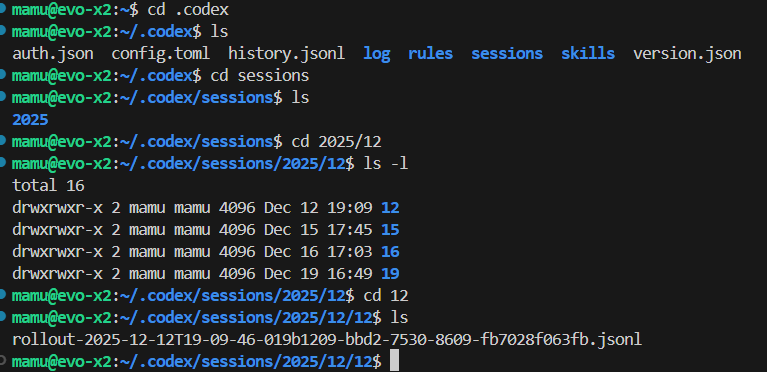
~/.codex/sessions/YYYY/MM/DD/rollout-XXXX.jsonl
Example:
~/.codex/sessions/2025/12/14/rollout-2025-12-14T11-00-35-019b1a96-986b-7e20-865e-db1aff031855.jsonl
These files are the same ones used when selecting a session with codex resume.
Checking Log Files
ls ~/.codex/sessions/
# Year/Month/Day directory structure

ls ~/.codex/sessions/2025/12/14/
# rollout-*.jsonl files
Understanding JSONL File Structure
.jsonl (JSON Lines) is a format where each line is a separate JSON object. Opening it raw is quite difficult to read.
Required Tool: jq
A command-line tool for formatting and extracting JSON data.
# Installation (Ubuntu/Debian)
sudo apt update && sudo apt install -y jq
Checking Log Structure
First, examine the key structure of the log file:
cd ~/.codex/sessions/2025/12/14

# Select a file
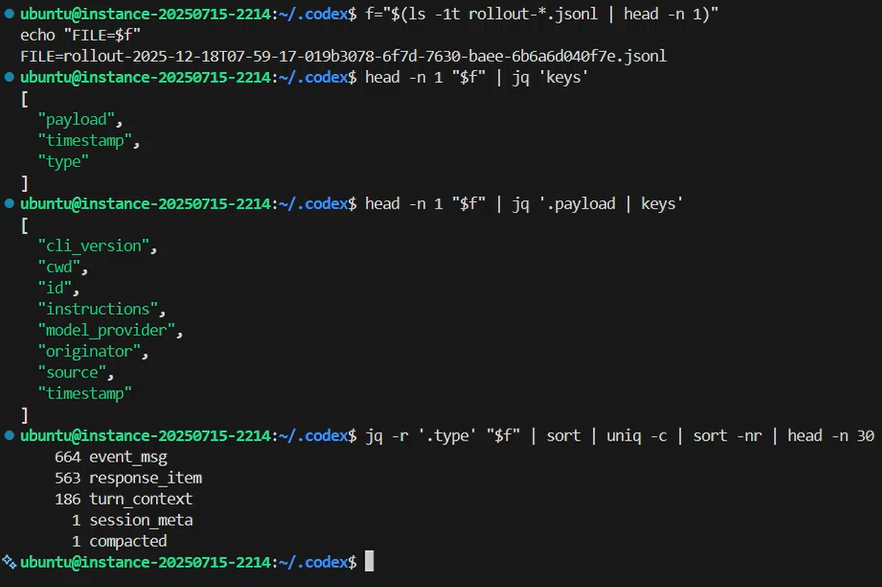
f=$(ls -1 rollout-*.jsonl | head -n 1)
echo "FILE=$f"

# Check top-level keys
head -n 1 "$f" | jq 'keys'
Example output:
[
  "payload",
  "timestamp",
  "type"
]
Checking Type Values
Logs contain multiple types of events:
jq -r '.type' "$f" | sort | uniq -c | sort -nr | head -n 30
Example output:
    142 response_item
     47 event_msg
     12 turn_context
      1 session_start
Main types:
event_msg: User input or system eventsresponse_item: AI responsesturn_context: Context informationsession_start: Session start metadata
Extracting Conversations in Readable Format
Extracting Only User Input
jq -r '
  select(.type=="event_msg" and .payload.type=="user_message")
  | "USER: " + .payload.message
' "$f" | less -R
Extracting Only AI Responses
jq -r '
  select(.type=="response_item")
  | (.payload.role // "assistant") + ": " + ((.payload.content // []) | map(.text? // empty) | join(""))
' "$f" | less -R
Converting Entire Conversation to Text File
jq -r '
  if .type=="event_msg" and .payload.type=="user_message" then
    "USER: " + (.payload.message // "")
  elif .type=="response_item" then
    "ASSISTANT: " + ((.payload.content // []) | map(.text? // empty) | join(""))
  else empty end
' "$f" > convo.txt

less -R convo.txt
Output with Timestamps
jq -r '
  select(.type=="event_msg")
  | "[" + (.timestamp|tostring) + "] "
  + (.payload.type // "event") + ": "
  + (.payload.message // "")
' "$f" > convo_with_timestamp.txt
Searching Past Conversations by Keyword
To search for keywords across multiple log files, ripgrep (rg) is very useful.
# Installation
sudo apt install -y ripgrep

# Search
cd ~/.codex/sessions
rg -n "Next\.js|malware|vulnerability" --include "*.jsonl"
Searching within a specific directory:
cd ~/.codex/sessions/2025/12/14
rg -n "search keyword" rollout-*.jsonl
Creating Convenience Commands (Tooling)
Typing jq commands every time is tedious, so creating a script is helpful.
Creating the codexlog Command
mkdir -p ~/bin

cat > ~/bin/codexlog <<'SH'
#!/usr/bin/env bash
set -euo pipefail

f="${1:-}"
if [[ -z "$f" ]]; then
  f="$(ls -1t rollout-*.jsonl 2>/dev/null | head -n 1)"
fi

if [[ ! -f "$f" ]]; then
  echo "Error: File not found: $f" >&2
  exit 1
fi

jq -r '
  if .type=="event_msg" and .payload.type=="user_message" then
    "USER: " + (.payload.message // "")
  elif .type=="event_msg" then
    ((.payload.type // "event") + ": " + (.payload.message // ""))
  elif .type=="response_item" then
    ((.payload.role // "unknown") + ": " + ((.payload.content // []) | map(.text? // empty) | join("")))
  else empty end
' "$f"
SH

chmod +x ~/bin/codexlog
Usage
# Add ~/bin to PATH (add to .bashrc)
export PATH="$HOME/bin:$PATH"

# Display latest log
cd ~/.codex/sessions/2025/12/14
codexlog | less -R

# Specify a particular file
codexlog rollout-2025-12-14T11-00-35-XXXXX.jsonl | less -R
Terminal Settings (Supplementary Measures)
The TUI scroll limit depends on your terminal settings.
For tmux
Add to ~/.tmux.conf:
set -g history-limit 100000
For Windows Terminal
Settings → Profiles → Select profile → Increase Scrollback lines (e.g., 100000)
Recording Everything with the script Command
A method to save all terminal output directly to a file:
script -f codex.tui.log
codex
# After work
exit
This records all TUI output to codex.tui.log.
Useful Codex CLI Slash Commands
Commands to use when context is about to overflow during long conversations:
| Command | Description |
|---|---|
/compact | Summarize current conversation to save context |
/new | Reset conversation within the same CLI (session maintained) |
/status | Display current session information |
Troubleshooting
jq Parse Errors
jq: parse error: Invalid numeric literal at line 1, column 4
Cause: When head -n 1 rollout-*.jsonl matches multiple files, head outputs header lines (==> filename <==).
Solution: Specify only one file
f=$(ls -1 rollout-*.jsonl | head -n 1)
head -n 1 "$f" | jq 'keys'
Variable $f Points to Old File
Shell variables persist even when you change directories.
Solution: Reset the variable in your working directory
cd ~/.codex/sessions/2025/12/14
f=$(ls -1 rollout-*.jsonl | head -n 1)
echo "FILE=$f"
Or specify the full path:
f="$HOME/.codex/sessions/2025/12/14/rollout-2025-12-14T11-00-35-XXXXX.jsonl"
No such file or directory
How to check:
pwd
echo "$f"
ls -l "$f"
Verify that the current directory and the value of $f match.
Why This Method Works
Codex CLI’s logging system is designed to allow recovery even if the UI breaks:
- Records all conversations as an event stream (JSONL)
- Saves separately by role (user/assistant/system)
- Organizes files by date + UUID
This design prioritizes “unbreakable records” over “visual appeal.”
Once you can parse logs with jq:
- You’re not bound by TUI display limits
- You can freely search past sessions
- You can save and share conversations as text
- You can recover manually even if the tool breaks
Summary
| Task | Command |
|---|---|
| Check log location | ls ~/.codex/sessions/ |
| Open latest log | f=$(ls -1t rollout-*.jsonl | head -n 1) |
| Check structure | head -n 1 "$f" | jq 'keys' |
| Extract user input | jq -r 'select(.type=="event_msg")...' "$f" |
| Keyword search | rg "keyword" rollout-*.jsonl |
| Convert conversation to text | codexlog > convo.txt |
This information is hard to find on Google, but knowing it will definitely come in handy.
References
- Codex CLI Features – OpenAI Developers
- Codex Local Config – OpenAI Developers
- Codex Slash Commands – OpenAI Developers
- jq Manual
I hope this article solves someone’s “I can’t see it!” problem
How to Recover Lost Conversations from Codex TUI Logs
When working in Codex’s TUI (Terminal User Interface) for extended periods, past conversations can become invisible. This doesn’t mean they’re gone—they’re just beyond the TUI’s display limits.
This article explains how to recover and search conversations from locally saved logs (JSONL format).
What is TUI?
TUI (Terminal User Interface) is a user interface that runs in the terminal. Unlike GUI applications that use a mouse, TUIs are primarily keyboard-driven. The Codex interface is one example of a TUI.
Log File Locations
Codex
~/.codex/sessions/YYYY/MM/DD/rollout-*.jsonl
Claude Code
~/.claude/projects/<project>/
Both follow the same principle: you can recover conversations by “extracting only the relevant lines from mixed logs.”
Preparing to Check Logs
Opening with VSCode (Recommended)
Since log directories are deeply nested, opening the .codex folder in VSCode for visual navigation is more efficient than using commands.
cd ~
ls -la .codex
Logs are organized by date. Since there may be multiple files per day, you first need to narrow down “which one to read.” Generally, start with the most recent rollout-*.jsonl file.
Understanding Log Structure
There are two main important types in the logs.
event_msg
Records user input.
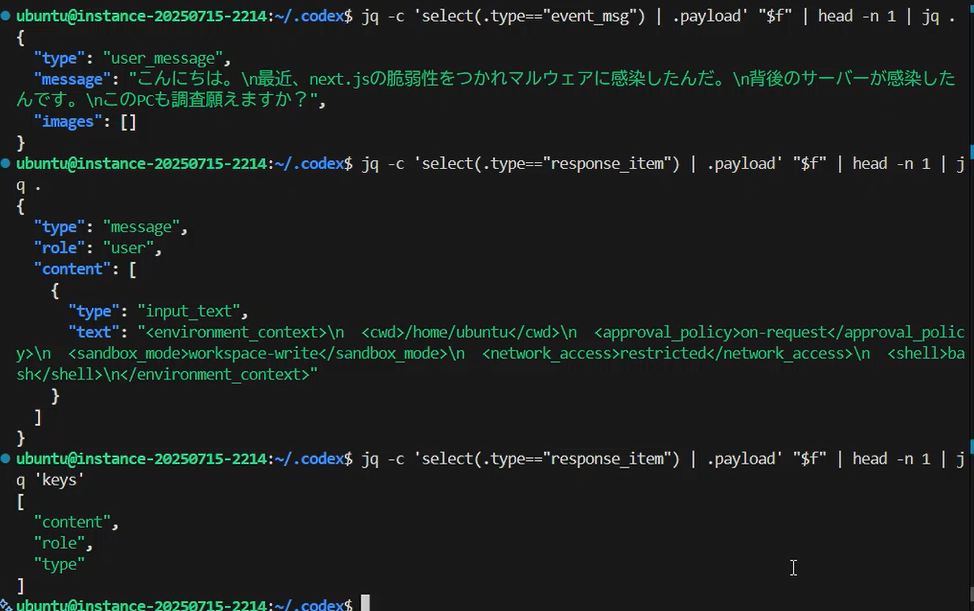
jq -c 'select(.type=="event_msg") | .payload' "$f" | head -n 1 | jq .
Example output:
{
  "type": "user_message",
  "message": "Hello.\nRecently, my Next.js app was exploited through a vulnerability and infected with malware.",
  "images": []
}
The message field contains the exact text the user typed.
response_item
Records AI responses and system information.
jq -c 'select(.type=="response_item") | .payload' "$f" | head -n 1 | jq .
Example output:
{
  "type": "message",
  "role": "user",
  "content": [
    {
      "type": "input_text",
      "text": "<environment_context>..."
    }
  ]
}
The role (user/assistant) and the body are inside content. Since environment information is also mixed in, it needs to be handled separately from the conversation text.
Checking Structure
jq -c 'select(.type=="response_item") | .payload' "$f" | head -n 1 | jq 'keys'
Output:
["content", "role", "type"]
If you have type / role / content, you can recover the conversation by separating user and assistant by role and extracting only the text from content.
jq Commands to Extract Conversations
You can extract just the conversation from event_msg and response_item. After extraction, you can scroll using the mouse wheel, keyboard arrow keys, or PageUp/PageDown. Press “q” to exit.
Searching for Specific Keywords
Using rg (ripgrep), you can quickly search logs containing specific keywords.
# Search for nginx-related logs
rg nginx "$f"

# Search for proxy-related logs
rg proxy "$f"

# Search for file-name-like patterns
rg -n "(/etc/nginx|nginx\.conf|sites-available|.conf|Dockerfile|next\.config|package\.json)" "$f"

# Search for edit/modification-related logs
rg -n "edit|modify|change|update|patch|diff|file|fix|modification" "$f"
What You Can and Can’t See in Logs
Likely Visible
- Explanatory text like “edited XX file” or “changed configuration”
- Commands that were executed
- Working directory (cwd) and environment information
Difficult to See or Not Guaranteed
- Complete patches (diffs showing exactly which lines changed and how)
- The actual contents of modified files themselves
While logs are useful for “tracing activities,” Git is the best tool for knowing the true differences.
Summary
- You can resume with
codex resume, but the TUI may not show all past history - Reading logs directly reveals information and exchanges that occurred during work, which you can review later
- Conversations can be recovered from logs, but for 100% reliable file change tracking,
git diffis the best approach