Introduction
While using PowerDirector 365, I encountered two audio issues during a single video editing project.
Issue 1: WAV file playback stops midway Issue 2: MP3 file waveform doesn’t match the actual audio
Honestly, at first I thought it was my PC or a cache problem, so I tried clearing the cache, restarting, and various other things. But my PC is a relatively new machine with a dedicated GPU. It didn’t seem like a specs issue.
After investigating, I found that both problems were bugs (or rather, compatibility issues) on the PowerDirector side.
I’m sharing the causes and solutions here in hopes it helps others facing the same problems.
Issue 1: WAV File Cuts Off Midway
Symptoms
- When you place a WAV file on the timeline, it shows only half its actual length
- During playback, speed and pitch are normal, but it abruptly stops midway
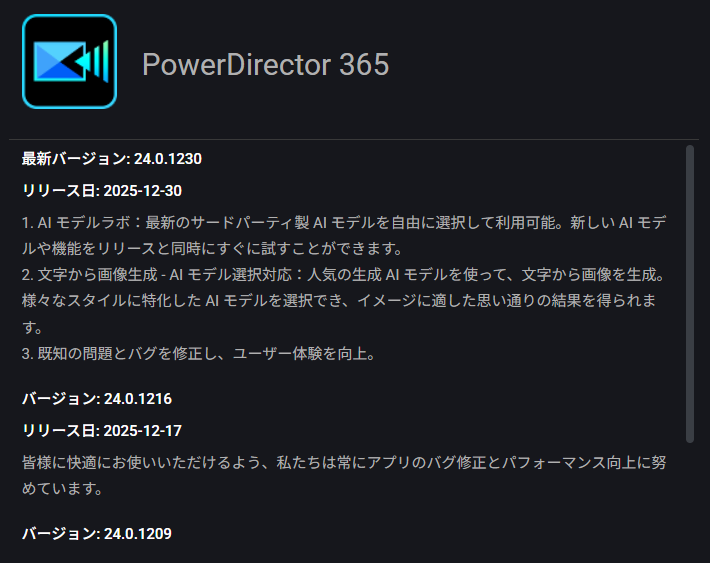
- Affected versions: PowerDirector 365 v24.0.1209–24.0.1230 (including the latest version as of December 2025)
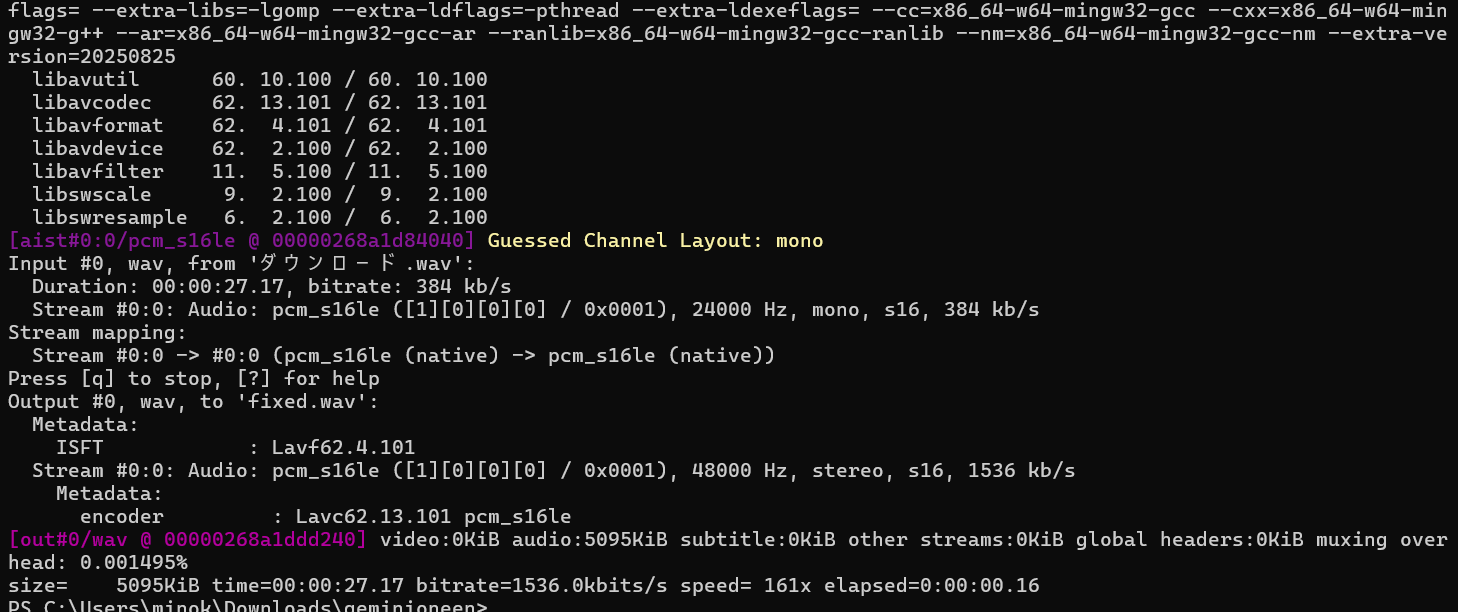
In my case, this happened when I imported AI-generated audio (24kHz/mono).
If it were playing at double speed, I would have noticed immediately that “the speed is wrong.” But since the speed was normal with this issue, it took time to identify the cause.
Cause: Sample Rate Misrecognition
The cause is a bug where PowerDirector reads 24kHz WAV files as if they were 48kHz.
Simply explained:
- Original file: 24,000 samples per second (24kHz)
- PowerDirector’s interpretation: 48,000 samples per second (48kHz)
- Result: File length is misrecognized as half → the second half gets cut off
Video editing software typically handles audio at 48kHz, so this problem is particularly pronounced with 24kHz files (exactly half).
What makes this tricky is that playback speed and pitch sound normal. It plays fine until it suddenly stops, leaving you wondering “Wait, why did it end?”
Solutions
Method A: Re-record (What I did first)
Honestly, this is what I initially did to work around the issue.
Play the original audio while recording it with another program at 48kHz/stereo. It’s primitive but reliable.
Pros: No special knowledge required, guaranteed to work Cons: Time-consuming, potential audio quality loss
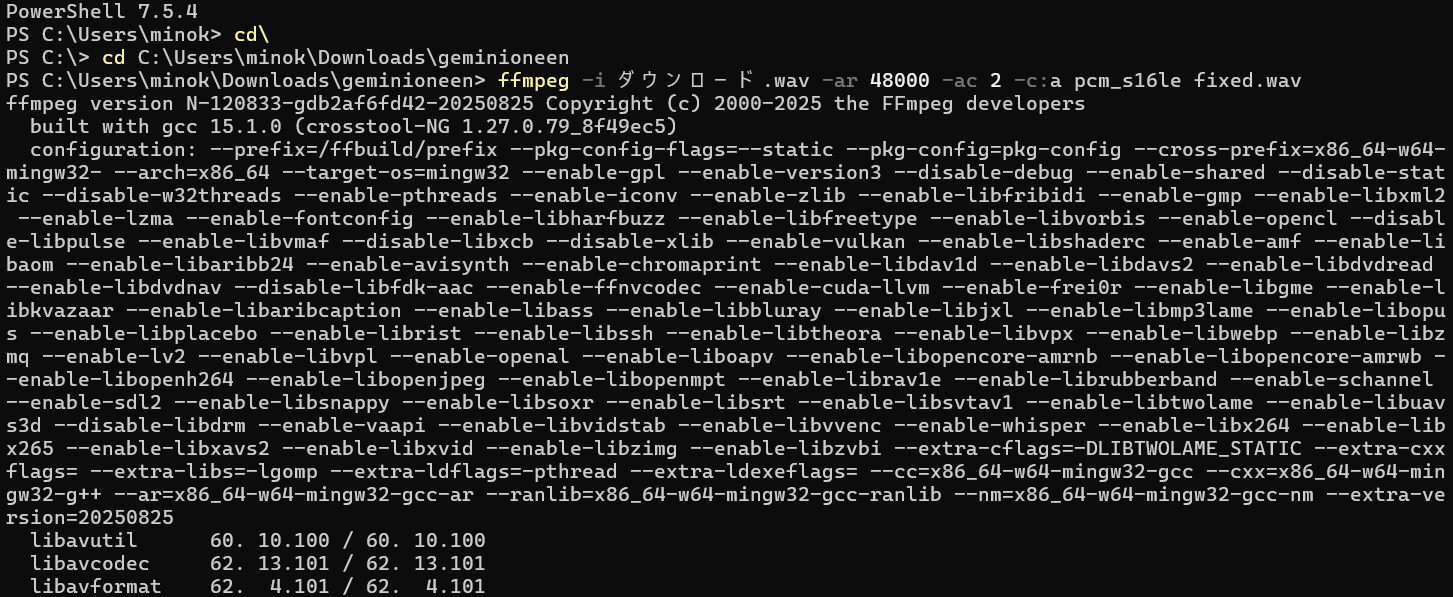
Method B: Convert with ffmpeg (What AI taught me)
Later, when I consulted ChatGPT, it told me “just convert it with ffmpeg.”
Honestly, I knew ffmpeg existed, but I don’t have the commands memorized. Even experts probably look them up every time.
ffmpeg -i input.wav -ar 48000 -ac 2 -c:a pcm_s16le output.wav
Option breakdown:
| Option | Meaning |
|---|---|
-i input.wav | Specify input file |
-ar 48000 | Convert sample rate to 48kHz |
-ac 2 | Convert to stereo (2 channels) |
-c:a pcm_s16le | Output as 16-bit PCM format |
Import the converted file into PowerDirector, and it will play correctly.
Issue 2: MP3 Waveform Doesn’t Match Actual Audio
Symptoms
- Place an MP3 file on the timeline
- The waveform display looks normal
- But during playback, the actual audio is out of sync with the waveform
- Even if you create subtitles aligned to the waveform, the timing is off during playback
In my case, this happened when I imported MP3 files generated with ElevenLabs.
This was really frustrating. At first, I thought my PC couldn’t keep up with the processing. I cleared the cache, recreated the project… But on a newer PC with a dedicated GPU? Really?
What made it even more confusing was that it displayed correctly in PowerDirector’s Audio Editor. The desync only happened on the timeline.
Cause: Missing Xing/Info Header in MP3
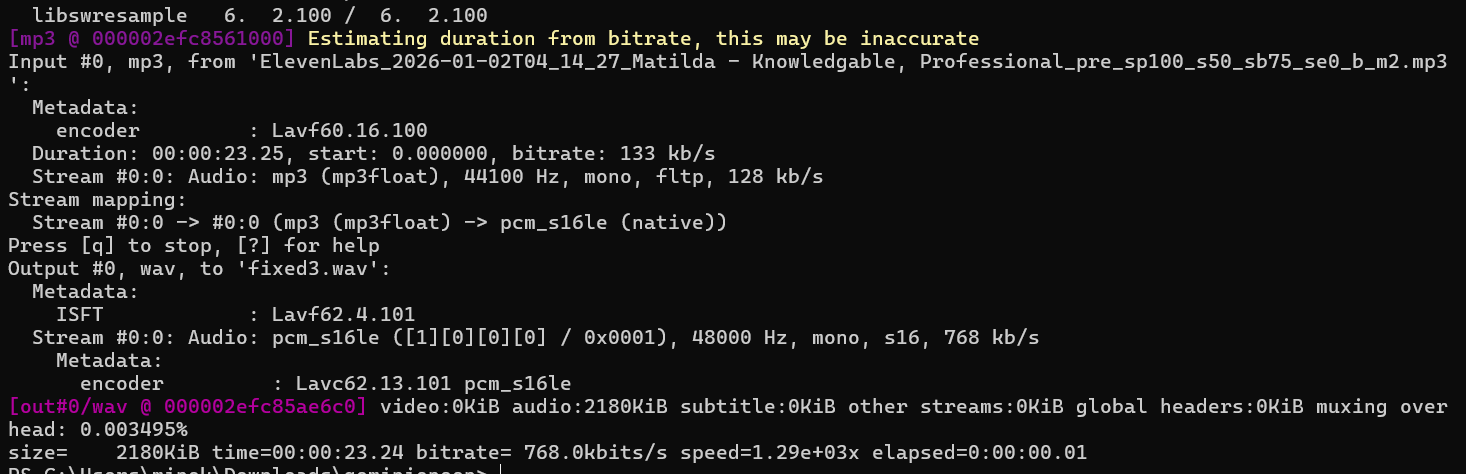
When you load the affected file with ffmpeg, you’ll see this warning:
Estimating duration from bitrate, this may be inaccurate
This is the cause.
MP3 files can contain a “Xing/Info header”—essentially a table of contents for seeking (jumping to different positions). Without this header, software has to “guess” the duration and seek positions.
In PowerDirector’s case:
- Audio Editor: Creates waveforms while actually decoding, so it’s accurate
- Timeline waveform display: Relies on “rough analysis + cache” for performance
This difference causes the strange symptom where “the waveform looks right but the audio is off.”
AI voice generation services like ElevenLabs apparently sometimes output MP3 files without this Xing header.
Solutions
Method A: Add Xing Header (No re-encoding)
A method to add just the header information without degrading audio quality:
ffmpeg -i input.mp3 -c:a copy -write_xing 1 output.mp3
-c:a copy copies the audio data as-is, and -write_xing 1 adds the Xing header.
This eliminates the “Estimating duration…” warning, and the waveform will match the audio.
Method B: Convert to 48kHz WAV (Most reliable)
Keeping files as MP3 can cause other minor issues, so ultimately converting to WAV is the most stable option:
ffmpeg -i input.mp3 -ar 48000 -ac 1 -c:a pcm_s16le output.wav
PowerDirector works most reliably with 48kHz source files, so this is recommended for precision work like subtitle timing.

How to Install ffmpeg
Since both issues use ffmpeg, I’ll include installation instructions.
On Windows, run this in PowerShell:
winget install ffmpeg
Or download from the official ffmpeg website.
Summary: Golden Rules for Handling Audio in PowerDirector
What I learned from this experience:
- Preparing audio as 48kHz/PCM WAV is most stable
- Be especially careful with AI-generated audio (often has non-standard sample rates or missing headers)
- When you think “maybe it’s my PC or cache,” suspect the source files first
I keep using PowerDirector because I’m familiar with it and have a subscription, but there really are a lot of audio-related bugs.
Encountering two issues in a single video project was almost enough to break my spirit, but knowing the solutions means I can handle them next time.
I hope this helps others facing the same problems.
References
- Official ffmpeg website: https://ffmpeg.org/
- PowerDirector 365 Release Notes: CyberLink official website
This article reflects information as of January 2026. The situation may change with PowerDirector updates.