I’ve written about rclone before, but there have been some major updates, so I’d like to introduce them here.

rclone is a powerful open-source tool that allows you to manage various cloud storage services from a single command line. It supports over 70 cloud storage providers, including Google Drive, Amazon S3, Dropbox, and OneDrive, and is available on multiple platforms such as Linux, Windows, and macOS.
Often called the “Swiss army knife for cloud storage,” this tool extends the concept of rsync to the cloud era, enabling efficient file synchronization and backups between local and cloud storage, as well as between different cloud services.
Latest Version Information
The latest version, v1.71.0, released in August 2025, brings significant performance improvements and new features. You can easily update to the latest version using the rclone selfupdate command.
Supported Cloud Storage Services
Here is the support status for major cloud storage services:
For General Users
- Google Drive / Google Photos – Supports both personal and business accounts
- Microsoft OneDrive – Supports personal, business, and SharePoint
- Dropbox – Supports both personal and business accounts
- Box – Business-oriented storage
- MEGA – Storage focused on encryption
- pCloud – Secure storage based on European standards
- Proton Drive – Privacy-focused storage
For Enterprise and Developers
- Amazon S3 – AWS standard object storage
- Google Cloud Storage – GCP standard storage
- Microsoft Azure Blob Storage – Azure standard storage
- Backblaze B2 – Cost-effective cloud storage
- Cloudflare R2 – S3-compatible storage with zero egress fees
- Wasabi – High-speed S3-compatible storage
Self-Hosting and Protocols
- SFTP/FTP – Standard file transfer protocols
- WebDAV – Compatible with Nextcloud and ownCloud
- SMB/CIFS – Windows shared folders
- HTTP – Downloading from web servers
Understanding the Difference Between rclone and rsync
rclone specializes in cloud storage operations, while rsync is focused on file synchronization locally or via SSH.
| Feature | rclone | rsync |
|---|---|---|
| Primary Use | Cloud storage management | Local/SSH synchronization |
| Supported Protocols | Over 70 cloud services | SSH, local files |
| Parallel Transfers | ◎ (Fast) | △ (Single-threaded) |
| Delta Sync | △ (Limited) | ◎ (Full implementation) |
| Windows Support | ◎ (Native) | △ (Via WSL/Cygwin) |
| Cloud-to-Cloud Transfer | ◎ (Direct transfer possible) | ✕ (Requires local intermediary) |
By using the --multi-thread-streams option, rclone can achieve network transfer speeds more than four times faster than rsync.
Installation Guide
Installing on Windows (Detailed Steps for Beginners)
Method 1: Direct Download from the Official Website (Recommended)
Download
- Go to the official website.
- Choose the version for your Windows system:
64-bit version (most common): rclone-v1.71.0-windows-amd64.zip
32-bit version (for older PCs): rclone-v1.71.0-windows-386.zip
Extract and Place the Files
C:\rclone\           ← Create this folder
  └── rclone.exe     ← Place the extracted file here
      rclone.1       ← Manual (optional)
      README.txt     ← Readme file (optional)
Set Environment Variables (Optional but Recommended)
- Press
Windows Key + Rand entersysdm.cpl. - Go to the “Advanced” tab and click “Environment Variables.”
- Select “Path,” click “Edit,” then “New.”
- Add
C:\rclone. - This allows you to run the
rclonecommand from any directory.
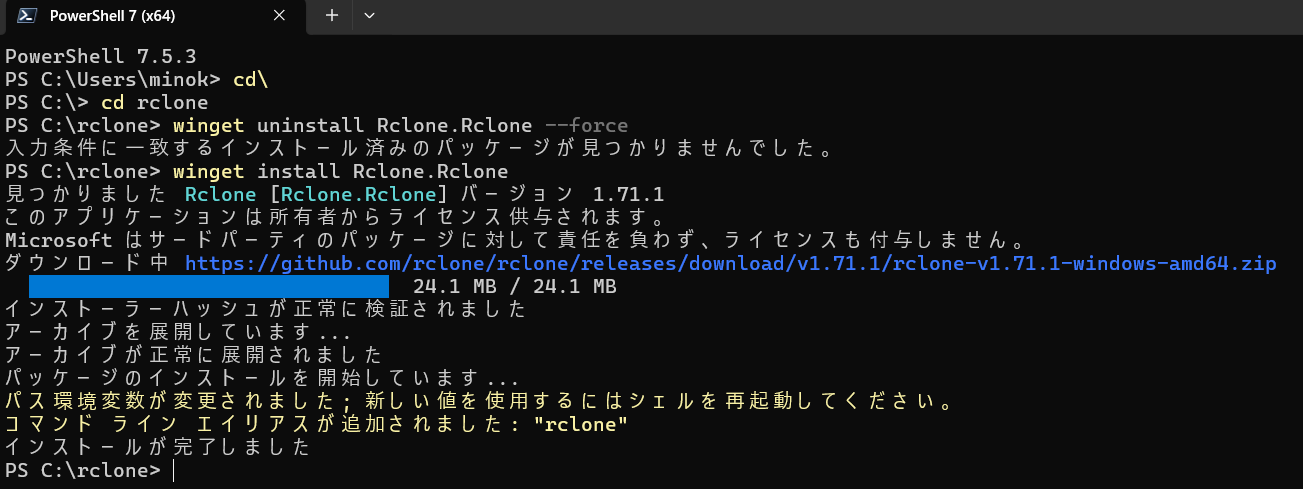
Method 2: Using Winget (Windows 11/10)
# Install
winget install Rclone.Rclone

# Uninstall
winget uninstall Rclone.Rclone --force
Personally, I found this method to be the easiest.
Method 3: Using Chocolatey
# Install
choco install rclone

# Also install WinFsp (for the mount feature)
choco install winfsp
Installing on Ubuntu/Debian
Method 1: Official Script (Recommended)
# Install the latest stable version
sudo -v ; curl https://rclone.org/install.sh | sudo bash

# Install the beta version
sudo -v ; curl https://rclone.org/install.sh | sudo bash -s beta
Method 2: Manual Installation (For more control)
# Download
wget https://downloads.rclone.org/v1.71.0/rclone-v1.71.0-linux-amd64.deb

# Install
sudo dpkg -i rclone-v1.71.0-linux-amd64.deb

# If dependency issues occur
sudo apt -f install
Installing on macOS
# Using Homebrew (Recommended)
brew install rclone

# Manual Installation
cd && curl -O https://downloads.rclone.org/rclone-current-osx-amd64.zip
unzip -a rclone-current-osx-amd64.zip && cd rclone-*-osx-amd64
sudo mkdir -p /usr/local/bin
sudo mv rclone /usr/local/bin/
Initial Setup Guide (Detailed Version for Beginners)
Basic Configuration Concept
In rclone, connection information for each cloud storage service is configured as a “remote.” A single remote represents a connection to one cloud storage account or service.
Configuration Example on Windows (OneDrive)
Open Command Prompt
- Press
Windows Key + Rand entercmd. - You can also use PowerShell.
Run the Configuration Command
rclone configCreate a New Remote
No remotes found, make a new one?
n) New remote
s) Set configuration password
q) Quit config
n/s/q> n  ← Type n and press Enter
Name the Remote
Enter name for new remote.
name> onedrive  ← Enter a descriptive name
Select Storage Type
Type of storage to configure.
Choose a number from below, or type in your own value.
...
XX / Microsoft OneDrive
   \ "onedrive"
...
Storage> onedrive  ← Type onedrive or the list number
Client ID and Secret
Microsoft App Client Id
Leave blank normally.
client_id>  ← Leave blank and press Enter

Microsoft App Client Secret
Leave blank normally.
client_secret>  ← Leave blank and press Enter
Select Region
Choose national cloud region for OneDrive.
1 / Microsoft Cloud Global
   \ (global)
2 / Microsoft Cloud for US Government
   \ (us)
...
region> 1  ← Usually select 1
Advanced Configuration
Edit advanced config?
y) Yes
n) No (default)
y/n> n  ← Type n
Use Auto Config
Use auto config?
y) Yes (default)
n) No
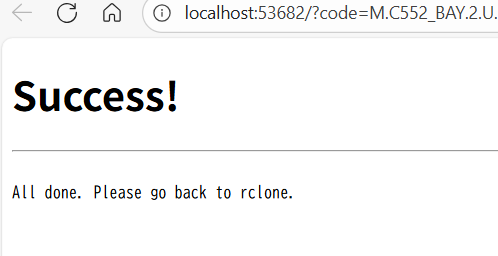
y/n> y ← Type y- A browser window will open automatically.
- Log in with your Microsoft account.
- Grant the necessary permissions.
Select Drive
Found drive "root" of type "personal"
y) Yes (default)
n) No
y/n> y  ← Type y
Confirm Configuration
Configuration complete.
Options:
- type: onedrive
- region: global
- drive_type: personal
...
Keep this "onedrive" remote?
y) Yes this is OK (default)
e) Edit this remote
d) Delete this remote
y/e/d> y  ← Type y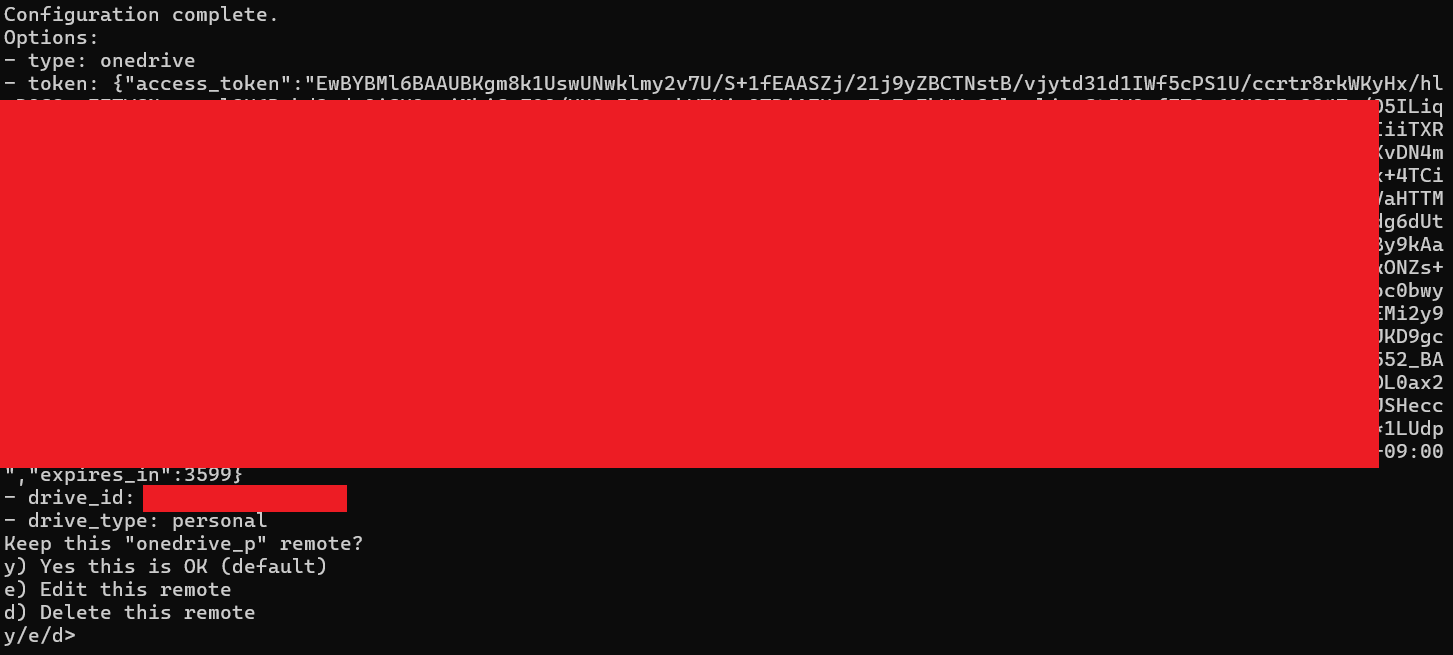
Configuration in an SSH Environment (Remote Server)
In environments without a web browser, such as a server connected via SSH, you need to obtain an authentication token from another machine.
1.Start Configuration on the Remote Server
rclone config2.Select “n” When Asked About Using a Browser
Use auto config?
y) Yes (default)
n) No
y/n> n  ← Type n
Copy the Displayed Authentication Command
Execute the following on the machine with the web browser:
rclone authorize "onedrive"
Get the Authentication Token on Your Local Machine (Windows/Mac)
# Run this in the terminal on your Windows/Mac
rclone authorize "onedrive"- A browser will open.
- Log in and grant permission.
- The token will be displayed.
Paste the Token into the Remote Server
Enter a value.
config_token> {"access_token":"...","expiry":"..."}  ← Paste the token you obtained
Basic Usage (Detailed Command Explanations)
Listing Files
# List files in the remote (with sizes)
rclone ls onedrive:

# List only directories
rclone lsd onedrive:

# Display in a tree format
rclone tree onedrive:

# List contents of a specific folder
rclone ls onedrive:Documents
Copying Files
# Local → Cloud
rclone copy C:\Users\username\Documents onedrive:backup/documents

# Cloud → Local
rclone copy onedrive:photos C:\Users\username\Pictures

# Cloud → Cloud (direct transfer)
rclone copy googledrive:data onedrive:backup --progress
Important Options:
--progressor-P: Show real-time transfer status.--dry-run: See what would happen without actually performing any operations.--interactiveor-i: Confirm before deleting.--transfers=8: Specify the number of parallel transfers (default is 4).
Synchronizing Files
# One-way sync (makes the destination identical to the source)
rclone sync C:\data onedrive:data --interactive

# Two-way sync (experimental feature)
rclone bisync C:\data onedrive:data --resync
⚠️ Warning: The sync command is destructive.
- Files that exist only in the destination will be deleted.
- It is highly recommended to use
--dry-runfor a preview first. - For important data, consider using the
copycommand instead.
Mount Feature (Use as a Drive)
On Windows:
# Mount as drive X:
rclone mount onedrive: X: --vfs-cache-mode full

# Mount as a network drive
rclone mount onedrive: X: --network-mode --vfs-cache-mode full
On Linux/macOS:
# Create a mount point
mkdir ~\/OneDrive

# Execute mount
rclone mount onedrive: ~\/OneDrive --vfs-cache-mode full --daemon
Cache Modes:
off: No caching (default).minimal: Caches the minimum required.writes: Caches writes.full: Caches both reads and writes (recommended).
Using GUI Tools
For those who are not comfortable with the command line, several GUI tools are available.
1. Rclone Web GUI (Official)
rclone includes an official, though experimental, Web GUI that allows you to operate it from a browser.
# Start the Web GUI
rclone rcd --rc-web-gui --rc-user=admin --rc-pass=password

# Access http://localhost:5572 in your browser
2. Rclone UI (Third-Party, Recommended)
Rclone UI is a modern desktop GUI that runs on Windows, Mac, and Linux, with the following features:
- Intuitive Operation: Drag-and-drop support.
- Scheduling: Automate regular backups.
- Concurrent Operations: Manage tasks in the background.
- Visual Progress: Graphically view transfer status.
You can download it from the official website.
3. RcloneBrowser (Open Source)
A stable GUI tool that has been in development for many years. It can be easily used on Linux in AppImage format.
Practical Use Cases
1. Automating Regular Backups
Example for Windows Task Scheduler:
<?xml version="1.0" encoding="UTF-16"?>
<Task>
  <Triggers>
    <CalendarTrigger>
      <StartBoundary>2025-01-01T02:00:00</StartBoundary>
      <Repetition>
        <Interval>P1D</Interval> <!-- Run daily -->
      </Repetition>
    </CalendarTrigger>
  </Triggers>
  <Actions>
    <Exec>
      <Command>C:\rclone\rclone.exe</Command>
      <Arguments>sync C:\ImportantData onedrive:backup --log-file=C:\rclone\backup.log</Arguments>
    </Exec>
  </Actions>
</Task>
Example for Linux cron:
# Edit crontab
crontab -e

# Run backup every day at 2 AM
0 2 * * * /usr/bin/rclone sync /home/user/documents gdrive:backup --log-file=/var/log/rclone-backup.log
2. Migrating Data Between Multiple Clouds
# Migrate large amounts of data from Google Drive to OneDrive
rclone copy googledrive: onedrive: \
  --transfers=20 \
  --checkers=40 \
  --drive-chunk-size=128M \
  --onedrive-chunk-size=100M \
  --progress \
  --log-file=migration.log
3. Encrypted Backups
# Create an encrypted remote
rclone config
# Select the crypt type and wrap an existing remote

# Upload with encryption
rclone copy /sensitive/data secret: --progress
Performance Optimization Techniques
Transferring Large Files
# Increase chunk size for faster speeds
rclone copy largefile.zip gdrive: \
  --drive-chunk-size=256M \
  --transfers=8 \
  --progress
Handling a Large Number of Small Files
# Increase checkers and transfers
rclone copy photos/ onedrive:photos/ \
  --transfers=32 \
  --checkers=16 \
  --fast-list \
  --progress
Limiting Bandwidth
# Limit to 1MB/s during business hours, unlimited otherwise
rclone copy data remote: \
  --bwlimit "08:00,1M 18:00,off" \
  --progress
Troubleshooting
Common Problems and Solutions
1. Authentication Error
Error: Failed to create file system for "remote:": failed to make oauth client
Solution:
- Token expired →
rclone config reconnect remote: - Start over with configuration →
rclone config delete remote→ Re-configure
2. Slow Transfer Speed
Solution:
# Increase parallel transfers
rclone copy source dest --transfers=20 --checkers=40

# Use a VPS as an intermediary
rclone copy local intermediate: && rclone copy intermediate: final:
3. Garbled Filenames
Solution:
# Specify encoding
rclone copy source dest --local-encoding=Slash,LtGt
4. Out of Memory
Solution:
# Adjust buffer size
rclone copy source dest --buffer-size=16M --use-mmap
Security Best Practices
1. Encrypting the Configuration File
# Set a password for the configuration
rclone config
# Select s) Set configuration password

# Specify the password via an environment variable
export RCLONE_CONFIG_PASS="your-secure-password"
2. Principle of Least Privilege
- If read-only access is needed, configure with Read-Only access.
- Restrict access to specific folders only.
- Update API keys regularly.
3. Log Management
# Record detailed logs (for troubleshooting)
rclone copy source dest -vv --log-file=rclone.log --log-level=DEBUG

# Configure log rotation
rclone copy source dest \
  --log-file=rclone.log \
  --log-max-size=10M \
  --log-max-age=7d \
  --log-max-backups=5
Advanced Features
Union (Combine Multiple Storages)
Treat multiple cloud storages as a single virtual drive:
# Create a Union remote
rclone config
# Select the union type
# upstream = gdrive: onedrive:dropbox:

# Example usage
rclone ls union:  # Lists the contents of all storages
Crypt (Transparent Encryption)
# Create an encryption layer
rclone config
# Select the crypt type
# remote = gdrive:encrypted
# filename_encryption = standard
# directory_name_encryption = true
Serve (Turn into a File Server)
# Serve as an HTTP server
rclone serve http remote:path --addr :8080

# Serve as a WebDAV server
rclone serve webdav remote:path --addr :8080

# Serve as an FTP server
rclone serve ftp remote:path --addr :2121
Summary and Future Outlook
rclone has evolved beyond a simple file transfer tool into an integrated cloud storage management platform. It stands out from conventional tools, especially in the following areas:
- Multi-Cloud Support: Supports over 70 services, helping to avoid vendor lock-in.
- High-Speed Transfers: Achieves speeds several times faster than traditional tools through parallel transfers.
- Flexibility: Can be operated via command line, GUI, or API.
- Security: Provides enterprise-level security with encryption, least privilege, and audit logs.
For anyone looking to seriously leverage cloud storage, rclone is an essential tool. I recommend starting with the simple rclone ls command and gradually mastering its more advanced features.
It’s also important to regularly check the official documentation for new features and improvements. The community is active, and many use cases and troubleshooting tips are shared on the forum.
To unlock the true power of your cloud storage, give rclone a try.