Once you’ve configured Serena, do you assume that Claude Code, Codex CLI, and Gemini CLI are using Serena? In other words, users who aren’t aware of this might think that once they’ve set it up, Serena is working while using Codex or Claude. Then, after enough time has passed, they think, “Wait, the AI isn’t using Serena, is it?” This article presents a solution to avoid this situation.
The assumption that “I set it up once = it should be working forever” is quite common, and cases where Serena gets disconnected without you noticing happen frequently. This is especially likely to occur during Codex/Claude updates, configuration changes, or project switching.
Common Symptoms
- Cross-code search and reference resolution that used to work well suddenly becomes weak/slow
- Doesn’t behave according to Serena’s “initial instructions”
- No access to Serena’s Web dashboard (default port 24282) / No process running
- Codex/Claude completes tasks using only built-in simple tools (doesn’t call external MCP)
Serena MCP (= serena start-mcp-server) does not automatically update every time it starts. This is an intentional design. Let’s organize the reasons and operational best practices below 👇
🧠 Why No Automatic Updates?
1. Prioritizing “Development Environment Stability”
Serena is a backend that IDEs and agents like Claude Code and Codex CLI directly depend on. If it automatically switches to the latest commit, there’s a risk that prompt integration could break due to minor changes in syntax or API specifications, so it adopts the approach of “explicitly using a fixed version.”
🔄 Update Best Practices
✅ Method 1: Explicitly Update Using uvx
uvx allows you to “explicitly re-fetch the latest version,” making this the safest and recommended approach.
# Run from the latest commit (also updates)
uvx --from git+https://github.com/oraios/serena serena start-mcp-server
uvx checks the cache each time and reinstalls if there are differences. In other words, it performs “update checks at runtime” but does not perform automatic updates (forced pull).
✅ Method 2: For Local Clone
If you’ve cloned the repository directly:
cd ~/serena
git pull
uv run serena start-mcp-server
If you’re following GitHub’s main branch, this completes the update.
✅ Method 3: Fixed Version Operation
If stable operation is your goal, fix the version:
uvx --from git+https://github.com/oraios/serena@v0.1.14 serena start-mcp-server
By specifying a tag like @v0.1.14, you can prevent breaking changes from updates.
🧩 Operational Tips
| Operation Type | Update Method | Notes |
|---|---|---|
| Local Experimentation | uvx --from git+https://github.com/... | Auto-fetch latest (for light verification) |
| Always-on Server | Fixed tag + manual git pull | Version stability priority |
| CI/Auto Build | uvx + --locked | Maintain reproducible environment like Pipfile.lock |
🛠 Supplement: Update Check Command (Simple)
uvx --from git+https://github.com/oraios/serena serena version
This outputs the current Serena version. The official way is to manually compare by looking at the releases on the GitHub repository.
apt upgrade doesn’t take care of uv or Serena, so they tend to become outdated before you notice (both are installed “via script or uv” = outside APT management).
So, it’s easier to set up 2 check systems + 1 integrated that “just notify” 👇 (While maintaining the policy of updating at your own timing)
1) Check Latest uv Version (Notification Only): uv-check.sh
#!/usr/bin/env bash
# Fetch the latest uv version from GitHub and compare with local (notification only)

set -e
REPO="astral-sh/uv"
TMP="/tmp/uv_latest.json"

have() { command -v "$1" >/dev/null 2>&1; }

if ! have uv; then
  echo "⚠️  uv not found. First install with the official installer:"
  echo '    curl -LsSf https://astral.sh/uv/install.sh | sh'
  exit 0
fi

if ! have curl || ! have jq; then
  echo "❌ curl/jq required: sudo apt update && sudo apt install -y curl jq"
  exit 1
fi

LOCAL="$(uv --version 2>/dev/null | awk '{print $2}')"
curl -sL "https://api.github.com/repos/${REPO}/releases/latest" -o "$TMP"
REMOTE="$(jq -r '.tag_name' "$TMP" | sed 's/^v//')"

echo "💻 uv local : ${LOCAL:-unknown}"
echo "🌐 uv latest: ${REMOTE:-unknown}"

if [[ -z "$REMOTE" || "$REMOTE" == "null" ]]; then
  echo "❌ Failed to query latest version (check GitHub API or jq)"
  exit 1
fi

if [[ "$LOCAL" != "$REMOTE" ]]; then
  echo "🟡 Update available!"
  echo "   Recommended: uv self update"
  echo "   If that fails, reinstall:"
  echo "   curl -LsSf https://astral.sh/uv/install.sh | sh"
else
  echo "✅ uv is up to date."
fi
Installation
sudo apt install -y jq
mkdir -p ~/bin
nano ~/bin/uv-check.sh   # ← Paste the above
chmod +x ~/bin/uv-check.sh
echo 'export PATH="$HOME/bin:$PATH"' >> ~/.bashrc && source ~/.bashrc
2) Check Latest Serena Version (Notification Only): serena-auto.sh
(You can use the one provided earlier as-is. Just recapping the key points)
- Compare the latest GitHub tag with
uvx … serena version - If there’s a difference, display only the update command example (no automatic update)
jqrequired
When you want to update:
uvx --from git+https://github.com/oraios/serena@vX.Y.Z serena start-mcp-server
3) Integrated Version That Checks Everything Togeth:check-ai-stack.sh
#!/usr/bin/env bash
# Check uv / Serena / Codex / Claude together with "notification only"

set -e
echo "==== uv ===="
~/bin/uv-check.sh || true
echo

echo "==== Serena ===="
~/bin/serena-auto.sh || true
echo

echo "==== Codex CLI ===="
if command -v codex >/dev/null 2>&1; then
  codex --version || true
  npm outdated -g @openai/codex || true
else
  echo "⚠️ codex not installed (skip)"
fi
echo

echo "==== Claude Code ===="
if command -v claude >/dev/null 2>&1; then
  claude --version || true
  npm outdated -g @anthropic-ai/claude-code || true
else
  echo "⚠️ claude not installed (skip)"
fi
Installation
nano ~/bin/check-ai-stack.sh  # ← Paste the above
chmod +x ~/bin/check-ai-stack.sh
Usage (Manual)
check-ai-stack.sh
Weekly Email/Log Notification Only (Optional)
crontab -e
Example:
# Run every Monday at 09:00 (JST) and email notification
0 9 * * 1 ~/bin/check-ai-stack.sh | mail -s "[AI stack] weekly check" you@example.com
※ If email is unnecessary, you can append to >> ~/.local/share/ai-stack/check.log.
“Occasionally” Remind on SSH Login (Lightweight One-liner)
Since it’s annoying every time, here’s an example that shows it only once every 7 days in .bashrc:
# Append to the end of ~/.bashrc (notification once every 7 days)
if command -v date >/dev/null; then
  STAMP="$HOME/.cache/ai-check.stamp"
  mkdir -p "$(dirname "$STAMP")"
  now=$(date +%s)
  if [ -f "$STAMP" ]; then last=$(cat "$STAMP"); else last=0; fi
  # 7 days = 604800 seconds
  if [ $((now - last)) -ge 604800 ]; then
    echo "[AI stack] Checking after a while → check-ai-stack.sh"
    ~/bin/check-ai-stack.sh | sed 's/^/    /'
    echo "$now" > "$STAMP"
  fi
fi
Why Doesn’t It Appear in apt?
- uv: Installed via official installer (curl) or self-update (
uv self update). Separate from APT packages. - Serena: Application layer run from GitHub repo via
uvx. Not under APT management. - Codex/Claude: Managed globally with npm (
npm -g). Also outside APT.
What’s needed for a development environment where Codex / Claude uses Serena to “handle heavy work” is essentially this set.
Essential (Minimum 3 Items + α to Make It Work)
- uv (Foundation for running Serena)
- Role: Python runtime + package management + run Serena on-the-fly with
uvx - Installation:
curl -LsSf https://astral.sh/uv/install.sh | sh
- Role: Python runtime + package management + run Serena on-the-fly with
- Serena MCP (MCP Server)
- Role: Handles analysis, search, and editing of huge repos
- Startup:
uvx --from git+https://github.com/oraios/serena serena start-mcp-server
- MCP Client
- Either (or both)
- Codex CLI (
npm i -g @openai/codex) - Claude Code (
npm i -g @anthropic-ai/claude-codeetc.)
- Codex CLI (
- Either (or both)
✅ Conclusion: “uv + Serena + (Codex or Claude)” is the core. As I intended, Serena handles heavy cross-analysis tasks and is called via MCP from Codex/Claude. So uv is involved (essential for running Serena).
Practically “Almost Essential” (Serena Experience Is Significantly Different)
ripgrep / fd-find / universal-ctags (Fast search & symbol indexing)
sudo apt update && sudo apt install -y ripgrep fd-find universal-ctags
echo 'alias fd=fdfind' >> ~/.bashrc && source ~/.bashrc
- Git (of course):
sudo apt install -y git - Language Server (LSP): According to project language
- Python:
pipx/uvx pyrightetc. - TS/JS:
npm i -g typescript-language-server typescript - Go:
sudo apt install -y golang→go install golang.org/x/tools/gopls@latest - Rust:
rustup→rust-analyzer - Java:
jdtlsetc. ※ Without LSP, “definition jump/reference resolution” accuracy and speed drop.
- Python:
Nice to Have (Depending on Scale and Use Case)
- jq/curl (for check scripts):
sudo apt install -y jq curl - build-essential pkg-config (for building dependencies requiring native extensions)
- Docker (when you want to isolate safely / for CI)
- watchman (for very large-scale file monitoring)
“Complete Command” for Shortest Setup
# 0) Base
sudo apt update && sudo apt install -y git ripgrep fd-find universal-ctags jq curl
echo 'alias fd=fdfind' >> ~/.bashrc && source ~/.bashrc

# 1) uv
curl -LsSf https://astral.sh/uv/install.sh | sh

# 2) Serena (run on-demand, no fixed installation needed)
uvx --from git+https://github.com/oraios/serena serena start-mcp-server \
  --context ide-assistant --project "$PWD" &

# 3) Client (either / both)
npm i -g @openai/codex
npm i -g @anthropic-ai/claude-code
Operational Tips (Preventing Disconnect Issues)
- Fixed startup order: Serena → (Codex/Claude). A wrapper (previous
dev-ide.sh) that doesn’t start IDE if Serena isn’t running works well. - Version fixing: Only update explicitly when you want to (Serena with
@vX.Y.Z, npm with version specification). - Weekly “notification only” check: Cron
uv-check.sh+serena-auto.sh+check-ai-stack.sh.
Windows Installation Procedure (Basic)
1) Installing uv
For Windows, according to the official documentation, there are the following methods: Astral Docs+2Astral Docs+2
Open PowerShell in administrator mode:
powershell -ExecutionPolicy ByPass -c "irm https://astral.sh/uv/install.ps1 | iex"
Or you can install from a Windows package manager (e.g., WinGet):
winget install --id=astral-sh.uv -e
After installation, verify with uv --version. If PATH isn’t set, you’ll get a “uv: command not found” type error, so you need to check environment variables.
2) Serena MCP Startup Configuration
On Windows, the basic flow is the same: “start Serena using uv with start-mcp-server” → register it as an MCP server in the client (Claude Desktop / Claude Code, etc.). For example:
uvx --from git+https://github.com/oraios/serena serena start-mcp-server --context ide-assistant --project <project path>etc. For Windows paths, be careful to escape\as\\, or use/.- Register Serena’s command as an MCP server in the client’s configuration file (e.g., Claude Desktop’s
%APPDATA%\Claude\claude_desktop_config.json). Be careful with Windows-specific path escaping.
⚠️ Windows-Specific “Pitfalls” & Notes
- PATH issues: Errors like
uvoruvxcommand not found, or file not found, are relatively commonly reported on Windows. - Permissions/Execution Policy: When running scripts in PowerShell,
ExecutionPolicysettings can be a constraint. You need to specifyByPassas the installer suggests. - Project path/directory separator: Windows uses
\, but in configuration files it’s safer to use\\or/. For example,"your\\project\\folder\\path"in JSON configuration. - Language server / Node.js / npm dependencies: There are also issues where
npmcommand is not found and fails when using TypeScript Language Server etc. on Windows. → Need to verify that Node.js + npm are properly installed/in PATH. - Update/check script operation: The
uv-check.sh/serena-auto.shprovided for Ubuntu assume a Bash environment. On Windows, you need to rewrite them as PowerShell script versions.
🔧 Windows Check/Notification Script Proposal
Since using the Ubuntu scripts as-is is difficult, it’s best to prepare PowerShell scripts for Windows. For example:
uv-check.ps1serena-auto.ps1
Simple example (uv-check.ps1):
# uv-check.ps1
$remoteJson = Invoke-WebRequest -Uri "https://api.github.com/repos/astral-sh/uv/releases/latest" | ConvertFrom-Json
$remote = $remoteJson.tag_name.TrimStart("v")
$local = (& uv --version).Split()[1]

Write-Host "uv local : $local"
Write-Host "uv latest: $remote"

if ($local -ne $remote) {
  Write-Host "⚠️ Update available! Please run uv self update"
} else {
  Write-Host "✅ uv is up to date."
}
Similarly, prepare serena-auto.ps1 to compare “GitHub release tag vs local version” and notify. Furthermore, if you set these to run “weekly” in Task Scheduler, you can enable “don’t forget checks” on Windows as well.
Error When Running uv self update
uv self update error: Self-update is only available for uv binaries installed via the standalone installation scripts. The current executable is at C:\Users\minok\AppData\Local\Microsoft\WinGet\Packages\astral-sh.uv_Microsoft.Winget.Source_8wekyb3d8bbwe\uv.exe but the standalone installer was used to install uv to C:\Users\minok\.local\bin. Are multiple copies of uv installed?
Conclusion: uv has a dual installation (WinGet version + standalone version), and uv self update is failing because it’s “looking at a different location than the one you installed yourself.”
What’s Happening?
uv self updatecan only update executables installed with the standalone version.- The currently running
uv.exeis under WinGet:C:\Users\minok\AppData\Local\Microsoft\WinGet\Packages\astral-sh.uv_...\uv.exe - But the standalone version also exists at the same time:
C:\Users\minok\.local\bin\uv.exe(uvx.exeis also here)
In this “two copies exist” state, depending on PATH priority, uv self update tries to touch the WinGet version and gets rejected.
Resolution Strategy (Unify to One)
✅ Strategy A (Recommended): Unify to Standalone Version
Reason: Can use uv self update / uvx is reliably included.
- Uninstall WinGet version
winget list astral-sh.uv
winget uninstall --id astral-sh.uv -e
- Check PATH priority (
%USERPROFILE%\.local\binshould be near the top)
where uv
$Env:Path -split ';'
Ideally, C:\Users\minok\.local\bin is before the WinGet location. If needed, temporarily:
$bin = "$Env:USERPROFILE\.local\bin"
$Env:Path = "$bin;" + ($Env:Path -replace [regex]::Escape("$bin;"), '')
(For persistence, editing via “System Environment Variables” GUI is recommended. setx may shorten existing PATH, so be careful)
- Verify
where uv
uv --version
uvx --version
uv self update       # ← This should now work
Strategy B: Unify to WinGet Version (Leave automatic updates to WinGet)
- Delete standalone version
- Delete
C:\Users\minok\.local\bin\uv.exe,uvx.exe,uvw.exe - Remove
C:\Users\minok\.local\binfrom PATH (if not used elsewhere)
- Update with WinGet
winget upgrade --id astral-sh.uv -e
Note:
uv self updatecannot be used. Whetheruvxis included in the WinGet package version depends on the package, so check withwhere uvx. If not, wait for WinGet update or go to Strategy A.
One-liner to Quickly Check the Situation
Write-Host "== which =="
where uv; where uvx
Write-Host "== actual =="
(Get-Command uv).Source
(Get-Command uvx -ErrorAction SilentlyContinue).Source
→ It’s immediately clear which executable is being called.
Recommended for Actual Operation
Go with Strategy A (standalone) + PATH priority, so you can use uv self update / uvx … serena … most smoothly.
For Serena-related scripts, you can fix the executable at the beginning for misfire prevention:
$UVX = (Get-Command uvx).Source  # e.g., C:\Users\minok\.local\bin\uvx.exe
& $UVX --from git+https://github.com/oraios/serena serena start-mcp-server ...
Shortest Recovery Procedure for This Case (Strategy A)
# 1) Remove WinGet version
winget uninstall --id astral-sh.uv -e

# 2) Reinstall standalone (skip if already done)
powershell -ExecutionPolicy ByPass -c "irm https://astral.sh/uv/install.ps1 | iex"

# 3) Prioritize .local\bin in PATH
#  → Edit environment variables via GUI or temporarily overwrite (snippet above)

# 4) Verify
where uv; where uvx
uv --version
uv self update   # ← If this works, unification complete
With this, even on Windows, uv self update works properly, and you can stably operate Serena via uvx.
However, the above method may not work in some cases.
PS C:\Users\minok> winget list astral-sh.uv No installed packages found matching input criteria. PS C:\Users\minok> winget uninstall --id astral-sh.uv -e No installed packages found matching input criteria.
Indeed, this is typical of an orphaned portable version where the WinGet version “appears to exist” but isn’t visible in winget list. In other words, only the “link (shim)” or package remnants created by WinGet remain, and uv self update picks that up.
Let’s manually clean up WinGet remnants → unify to standalone version with the procedure below.
Quick Recovery (PowerShell)
- First, check which uv is being called
where uv
Get-Command uv | Select-Object Source
where uvx
Get-Command uvx | Select-Object Source
If the output is ...AppData\Local\Microsoft\WinGet\Packages\astral-sh.uv_...\uv.exe, the WinGet side is prioritized. If where uv shows nothing, you can display it in Command Prompt.

- Delete WinGet’s “portable link” (If this remains, it tends to be prioritized)
# WinGet link location (shortcut executable)
$links = "$env:LOCALAPPDATA\Microsoft\WinGet\Links"
Remove-Item "$links\uv.exe"  -ErrorAction SilentlyContinue
Remove-Item "$links\uvx.exe" -ErrorAction SilentlyContinue
Remove-Item "$links\uvw.exe" -ErrorAction SilentlyContinue
If Links is empty (or doesn’t exist at all), the WinGet side is likely “putting the executable directly under Packages, not via Links shim” in PATH. The workaround for that case is described later.
- Delete WinGet package remnants (if any)
$pkg = Get-ChildItem "$env:LOCALAPPDATA\Microsoft\WinGet\Packages" -Directory `
       | Where-Object { $_.Name -like 'astral-sh.uv_*' }
if ($pkg) { Remove-Item $pkg.FullName -Recurse -Force }
- Prioritize the already installed standalone version (So
C:\Users\minok\.local\binis near the top of PATH)
$bin = "$env:USERPROFILE\.local\bin"
# Temporarily put at top (session only)
$env:Path = "$bin;" + ($env:Path -replace [regex]::Escape("$bin;"), '')

# For persistence, moving to the top of user PATH in "System Environment Variables" GUI is safe
- Verify operation
where uv
Get-Command uv | Select-Object Source
uv --version
uv self update   # ← If this works, OK
Last Resort If It Doesn’t Work
Reinstall the .local\bin side (overwrite OK)
powershell -ExecutionPolicy ByPass -c "irm https://astral.sh/uv/install.ps1 | iex"
If where uv still points to the WinGet side, Path order is still reversed. Also recheck whether uv.exe in Links has been recreated.
Key Points
- WinGet portable apps have shim in “Links” folder as the executable. Sometimes they don’t appear in
winget list, and for deletion, manually cleaning both Links and Packages is reliable. - Going forward, keeping only the standalone version allows you to use
uv self updateand stabilizes Serena operation. - Serena side can be used as-is:
uvx --from git+https://github.com/oraios/serena serena start-mcp-server
Links Is Empty and Command Shows Nothing
Currently being picked up is:
C:\Users\minok\AppData\Local\Microsoft\WinGet\Packages\astral-sh.uv_...\uv.exe
So, we’ll flush out which uv.exe is prioritized and PATH order all at once, remove the WinGet side, and prioritize .local\bin.
1) Show All “Which uv Is Being Used”
# Which order are they found in (multiple will appear)
where uv
where uvx

# Actual executable that PowerShell resolves (-All for all)
Get-Command uv  -All | Select-Object Source
Get-Command uvx -All | Select-Object Source

If
WinGet\Packages…\uv.exeappears above.local\bin\uv.exe, that one is prioritized.
2) Check If WinGet’s Packages Path Is Mixed in PATH
$Env:Path -split ';' | ForEach-Object {
  if ($_ -match 'WinGet\\Packages' -or $_ -match 'WindowsApps') { "→ $_" } else { $_ }
}
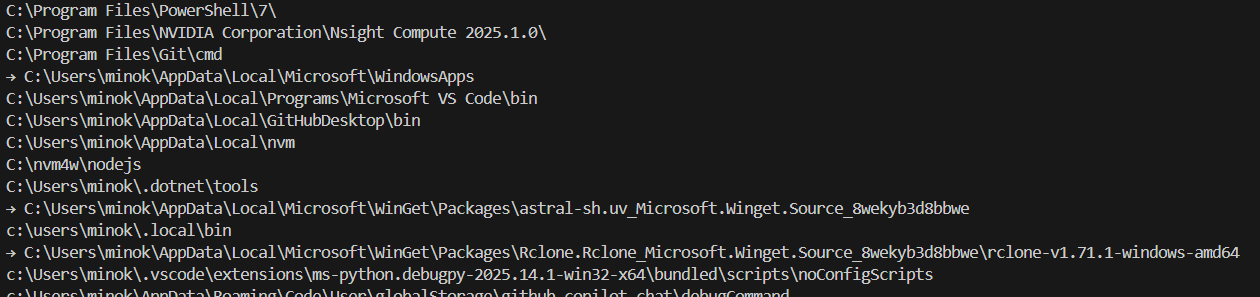
…\Microsoft\WinGet\Packages\astral-sh.uv_…appears ⇒ This is the target to remove…\Microsoft\WindowsAppsis for Microsoft Store/aliases. Usually OK to leave as-is (often unrelated to uv)
3) Clean “WinGet Executable” (Delete Packages Directly If Links Doesn’t Exist)
# Delete uv's WinGet remnant folder if it exists
Get-ChildItem "$env:LOCALAPPDATA\Microsoft\WinGet\Packages" -Directory `
| Where-Object { $_.Name -like 'astral-sh.uv_*' } `
| ForEach-Object {
    Write-Host "Removing $($_.FullName)"
    Remove-Item $_.FullName -Recurse -Force
}

# Just in case, Links once more (ignore if doesn't exist)
Remove-Item "$env:LOCALAPPDATA\Microsoft\WinGet\Links\uv*.exe" -ErrorAction SilentlyContinue

Note: If the above fails, you can manually delete by opening the folder in Explorer (if not locked, deletion is possible).
4) Prioritize .local\bin for Testing (Session Only)
$bin = "$env:USERPROFILE\.local\bin"
$env:Path = "$bin;" + ($env:Path -replace [regex]::Escape("$bin;"), '')

# Verify
where uv
Get-Command uv | Select-Object Source
uv --version
uv self update   # ← If this succeeds, switching to standalone priority is complete
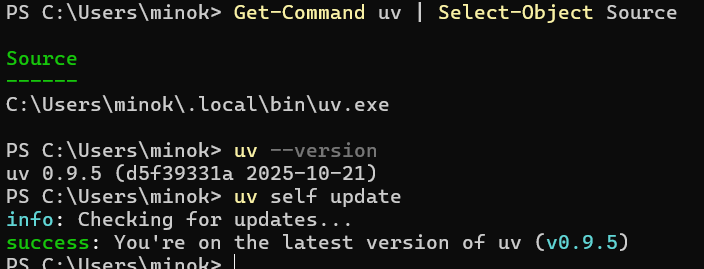
PS C:\Users\minok> Get-Command uv | Select-Object Source
Source
——
C:\Users\minok\.local\bin\uv.exe
PS C:\Users\minok> uv –version
uv 0.9.5 (d5f39331a 2025-10-21)
PS C:\Users\minok> uv self update
info: Checking for updates…
success: You’re on the latest version of uv (v0.9.5)
5) Persistence (Reordering User PATH)
GUI (recommended): Settings → System → About → “Related settings” → Advanced system settings → Environment Variables → Edit “User environment variables” PATH → Move %USERPROFILE%\.local\bin to the top → Save with OK → Reopen a new PowerShell and verify.
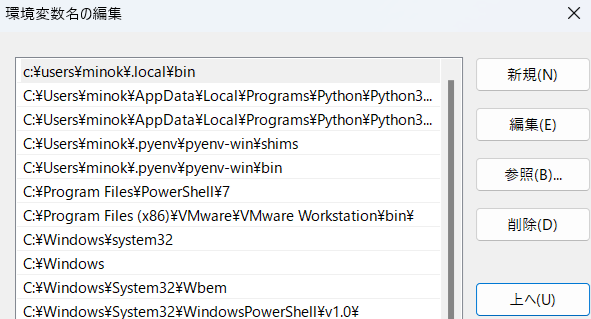
If you really want to do it via command (higher risk, so GUI recommended):
$bin  = "$env:USERPROFILE\.local\bin"
$curr = [Environment]::GetEnvironmentVariable('Path', 'User')
if ($curr -notmatch [regex]::Escape($bin)) {
  [Environment]::SetEnvironmentVariable('Path', "$bin;$curr", 'User')
} else {
  # Move to top
  $parts = ($curr -split ';') | Where-Object { $_ -ne $bin -and $_ -ne '' }
  $new = "$bin;" + ($parts -join ';')
  [Environment]::SetEnvironmentVariable('Path', $new, 'User')
}
6) Final Check
where uv; where uvx
Get-Command uv,uvx | Select-Object Name,Source
uv --version
uv self update
With this, WinGet side executable is removed, and .local\bin‘s uv/uvx is reliably prioritized. Going forward:
- Update:
uv self update - Serena startup:
uvx --from git+https://github.com/oraios/serena serena start-mcp-server --context ide-assistant --project "C:/path/to/your/project"